SwiGO SuperSmart - User Manual
1. Introduction
The EVIQtech SwiGO SuperSmart is an advanced IoT-enabled Switch, Motor controller and Protector designed for Indian 2-module wall boxes. It controls and protects single-phase loads up to 20A/5kW with its built-in relay, or up to 40A/30HP three-phase loads when used with an external CT (Current Transformer). The device combines intelligent motor protection with smart connectivity, allowing you to monitor and control any load or motor-driven equipment locally, over WiFi, or from anywhere via the cloud.
1.1 Key Features
Convenience
- Timer-based ON/OFF control with countdown display and four preset buttons
- Scheduling with daily, weekly, and cyclic time windows
- Simple local portal to view device operation status, next schedule & logs
- WiFi network mode for local home/office control
- Cloud mode for remote control from anywhere with activity logging
- Multi-device management from a single app
- Cross-platform local access — Android app or any web browser (iOS, iPadOS, macOS, Windows, Linux)
Protection
- Over-voltage and under-voltage protection with configurable limits
- Over-current (overload) and under-current (dry-run) protection
- Maximum run duration configuration
- Float switch and flow switch support (5V DC) — tank-overflow and dry-run protection
- Relay is switched at zero crossing, so arcing is reduced and the contacts last longer
- All operations logged to confirm and for troubleshooting power issues
Energy Measurement
- Real-time voltage, current, power, and energy monitoring (V, A, W, kWh) with an accurate power sensor chip
- Session and cumulative energy metering
Other Features
- Bluetooth Low Energy (BLE) pairing for quick setup
- Master-Remote control configuration for multi-device setups
Special Features
- Local AP mode for field/farm use without any WiFi or internet
- Cloud connectivity via EVIQtech Cloud
- Firmware update capability via the app (OTA)
1.2 Product Variants
The SwiGO SuperSmart is available in four timing variants. The button timings listed below apply to the physical buttons on the device only. When using the web app or cloud dashboard, any duration in hours and minutes can be set regardless of variant.
| Model | Button 1 (Green) | Button 2 (Yellow) | Button 3 (Blue) | Button 4 (Violet) |
|---|---|---|---|---|
| EDS031 | 5 min | 10 min | 15 min | 20 min |
| EDS032 | 15 min | 30 min | 45 min | 60 min |
| EDS033 | 1 hr | 2 hr | 3 hr | 4 hr |
| EDS034 | 4 hr | 8 hr | 12 hr | 16 hr |
1.3 Technical Specifications
| Specification | Details |
|---|---|
| Rated Voltage | 250V AC 50Hz |
| Maximum Switching Voltage | 290V AC |
| Maximum Withstand Voltage | 440V AC |
| Cut-Off Voltage | Below 170V AC or above 290V AC |
| Maximum Current (Built-in) | 20A / 3HP / 5kW |
| Maximum Current (External CT) | 40A / 30HP Three Phase |
| DC Output for Float Switch | 5V DC only |
| Mounting | Flush / Surface mount in standard Indian 2-module box |
| Suitable For | Indian 2-module box (surface-mountable) |
| Standard | IS/IEC 60669-2 |
| Color | White |
| Weight | 225g |
| Dimensions | 87 x 87 x 45mm |
| Terminal Size | 2.5 sq mm x 2 |
| Warranty | 1 Year |
1.4 What's in the Box
The SwiGO SuperSmart comes ready for installation in a standard Indian 2-module electrical box. The device is designed for surface-mountable 2-module boxes commonly used in Indian residential and commercial wiring. Contents:
- SwiGO SuperSmart unit (1x) — fits standard Indian 2-module surface-mount box
- CR1220 Battery (1x) — included in box; customer to install for RTC backup
- Quick Start Guide
- Mounting hardware
1.5 System Requirements
The SwiGO SuperSmart supports two parallel control paths. Choose whichever matches your device:
Android users: Install the EVIQtech IoT app from the Google Play Store. The app provides BLE pairing, local control, and cloud access.
iOS / iPadOS / iPhone / iPad users: No app installation is required. Use any modern web browser (Safari, Chrome, Firefox) to access the device's built-in local web interface. A native iOS app is under development and will be released soon.
Desktop / laptop users (macOS, Windows, Linux): Use any web browser to access the device on the same WiFi network or via Local AP mode.
Minimum requirements:
- Android smartphone running Android 8.0 or later, OR
- iPhone / iPad running iOS 14 or later (Safari, Chrome, Firefox), OR
- Any device with a modern web browser (macOS, Windows 10/11, Linux) for local control
- 2.4 GHz WiFi network (for WiFi and cloud modes)
- Bluetooth 4.0+ on your Android phone (only required for BLE pairing / cloud provisioning)
- EVIQtech cloud account (only required for remote/cloud features)
2. Hardware Overview
2.1 Terminals (Rear)
The rear of the SwiGO SuperSmart has the following terminal connections:
- LINE → IN: Live/Phase incoming from mains supply
- N: Neutral — two terminals both marked N; use one for incoming supply neutral and the other for looping neutral to the load
- LINE → OUT: Live/Phase output to load (motor, pump, heater, etc.)
- 5V DC Red & Black wires: Float switch supply — 5V DC ONLY
- Green wire: Earth connection
2.2 Front Panel Buttons
The front panel has five buttons with color-coded functions:
| Button | Color | Function |
|---|---|---|
| Button 1 | Green | Timer — duration per variant (see Section 1.2) |
| Button 2 | Yellow | Timer — duration per variant |
| Button 3 | Blue | Timer — duration per variant |
| Button 4 | Violet | Timer — duration per variant |
| Button 5 | Red (right) | Manual OFF / Stop |
2.3 Button Combinations — System Functions
Special button combinations provide system-level functions:
| Combination | Hold | LED | Function |
|---|---|---|---|
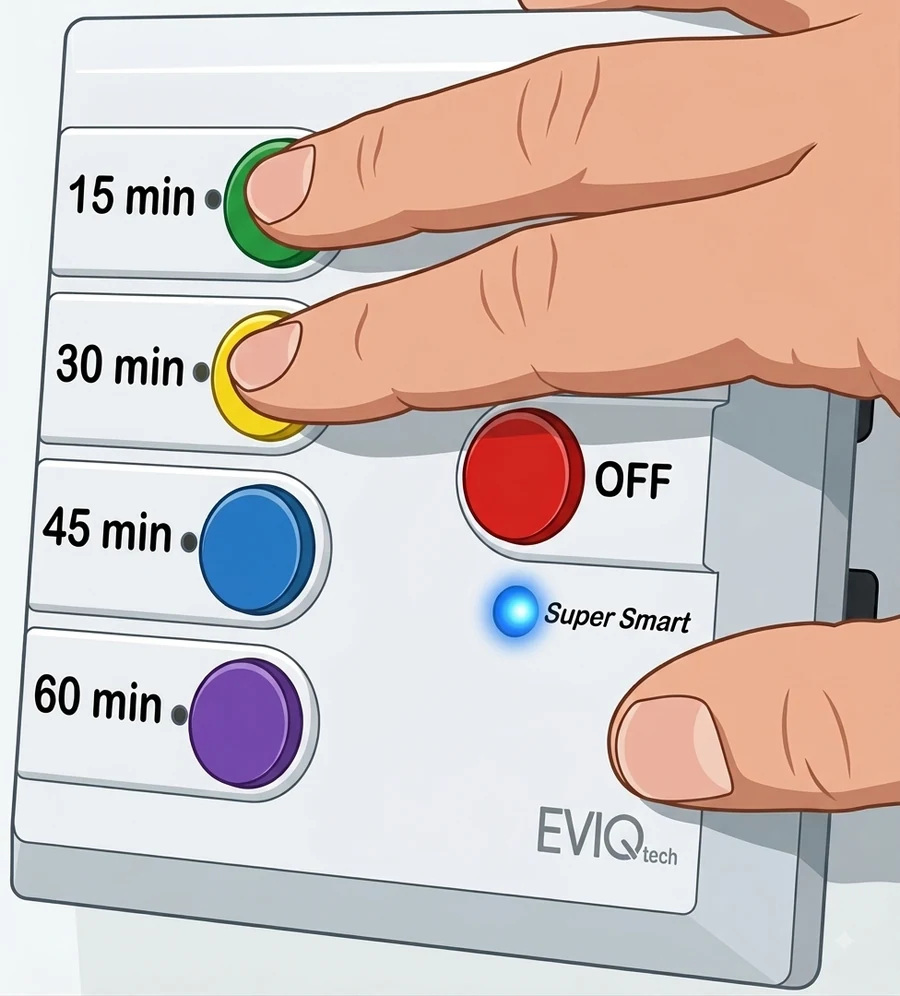
| Green + Yellow | 5 sec | Blue blinks fast | Activate BLE pairing mode |
| Red (alone) | 5 sec | Blue LED on | Disable BLE pairing mode (if active) OR Activate Parallel AP mode |
| Violet + Red | 10 sec | Blue LED on | Remove WiFi settings, return to AP mode |
| Yellow + Blue + Red | 20 sec | Blue LED on | Full factory reset — clears ALL settings |
2.4 Fault Indicators (LED)
| Fault | LEDs | Colors | Timing |
|---|---|---|---|
| Dry-run (under-current) | LED 1 + Right RED LED | Both RED | Blinks 6s; stops after 7s if the fault is present at start, or after 4s if it appears while running |
| Overload (over-current) | LED 2 + Right RED LED | Both RED | Blinks 6s; stops after 7s if the fault is present at start, or after 4s if it appears while running |
| Under-voltage | LED 3 + Right RED LED | LED3 RED, Right RED | Continuous; trips within 7s |
| Over-voltage | LED 4 + Right RED LED | LED4 RED, Right RED | Continuous; trips within 7s |
| Tank Full | LEDs 4, 3, 2, 1 | All Red LEDs | Bottom to top, one by one, twice |
2.5 Connection Diagrams
The SwiGO SuperSmart supports six standard wiring configurations. Each circuit is described below with its connection diagram.
2.6 Circuit 1: Heater / Resistive Load
Use this wiring for resistive loads such as water heaters, room heaters, and immersion rods. A simple single-phase connection with live switched through the SwiGO SuperSmart and neutral passed directly to the load.
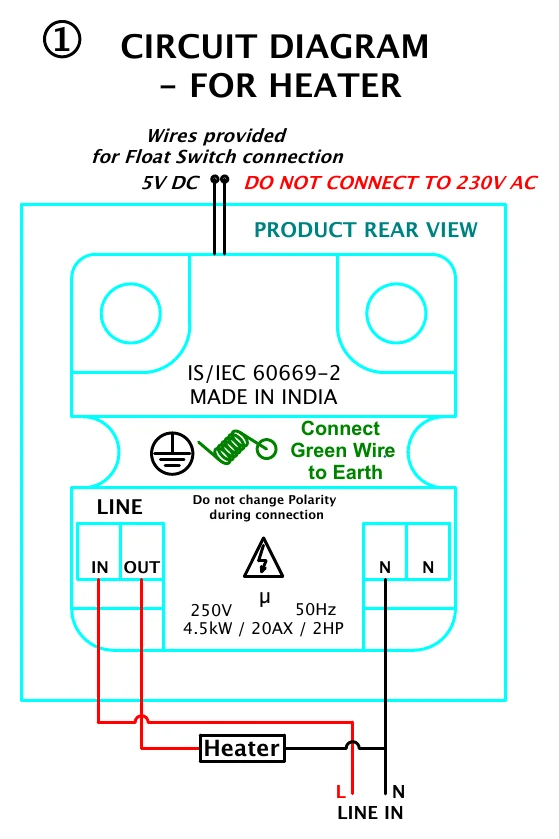
| From (Supply/Device) | → | To (Load/Accessory) |
|---|---|---|
| Mains Live (Phase) | → | SwiGO LINE → IN |
| SwiGO LINE → OUT | → | Heater Live terminal |
| Mains Neutral | → | SwiGO N (either terminal) |
| SwiGO N (other terminal) or direct | → | Heater Neutral terminal |
2.7 Circuit 2: Compound / Street Lighting
For compound lights, street lights, or multiple light circuits. The SwiGO SuperSmart acts as a smart switch for the entire lighting circuit, providing timer and scheduling control.
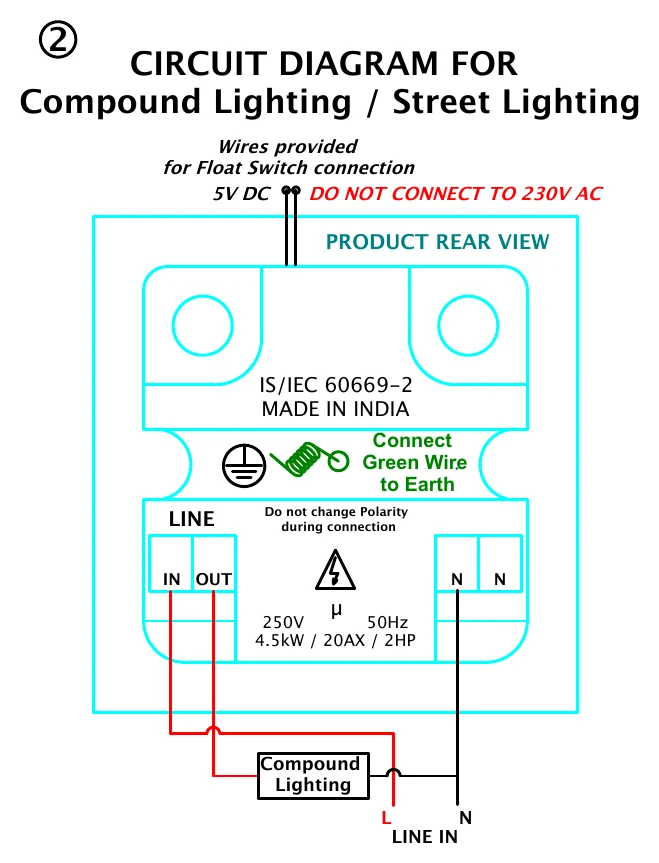
| From (Supply/Device) | → | To (Load/Accessory) |
|---|---|---|
| Mains Live (Phase) | → | SwiGO LINE → IN |
| SwiGO LINE → OUT | → | Lighting circuit Live |
| Mains Neutral | → | SwiGO N (either terminal) |
| Neutral bus / direct | → | Lighting circuit Neutral |
2.8 Circuit 3: Sump Pump / Monobloc / Single-Phase Motor (Most Common)
The most common wiring for single-phase motors including sump pumps, monobloc pumps, and general-purpose motors. Supports optional float switch for automatic tank-full shutoff.
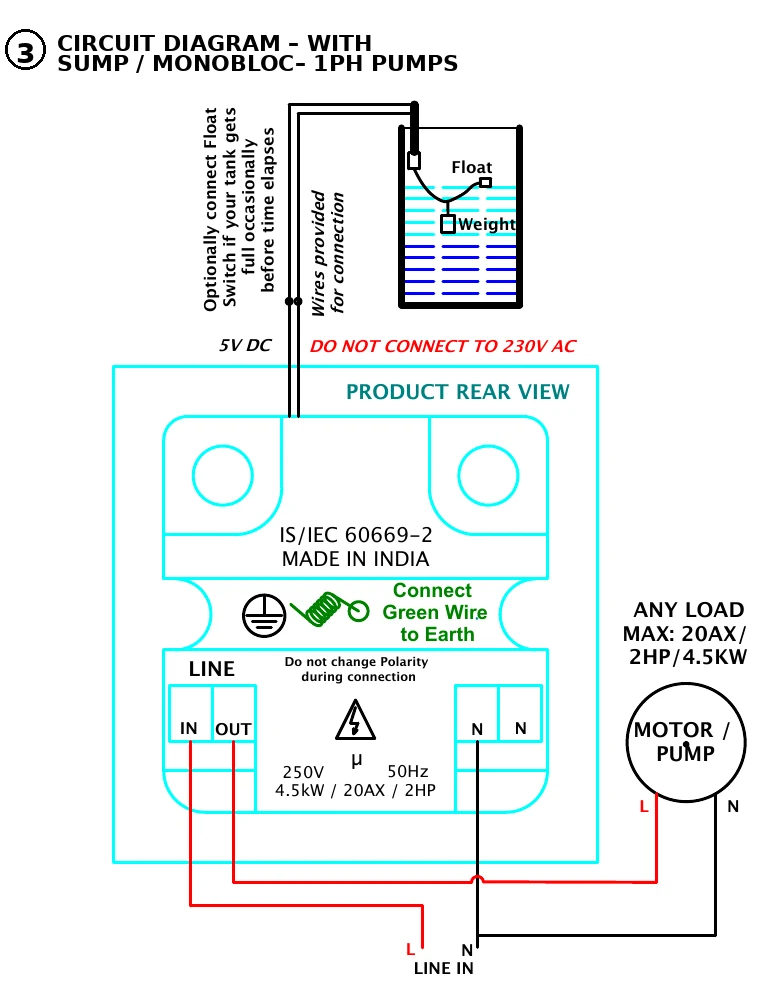
| From (Supply/Device) | → | To (Load/Accessory) |
|---|---|---|
| Mains Live (Phase) | → | SwiGO LINE → IN |
| SwiGO LINE → OUT | → | Motor/Pump Live terminal |
| Mains Neutral | → | SwiGO N (either terminal) |
| SwiGO N (other terminal) or direct | → | Motor/Pump Neutral terminal |
| SwiGO 5V DC Red wire | → | Float switch wire (see Annexure B) |
| SwiGO 5V DC Black wire | → | Float switch wire (see Annexure B) |
| SwiGO Green wire | → | Earth connection |
2.9 Circuit 4: Energy Monitoring Pass-Through
In this configuration, the SwiGO SuperSmart monitors voltage, current, power, and energy consumption of the load without switching it. The load remains always connected. Useful for energy auditing and monitoring equipment that should not be switched off.
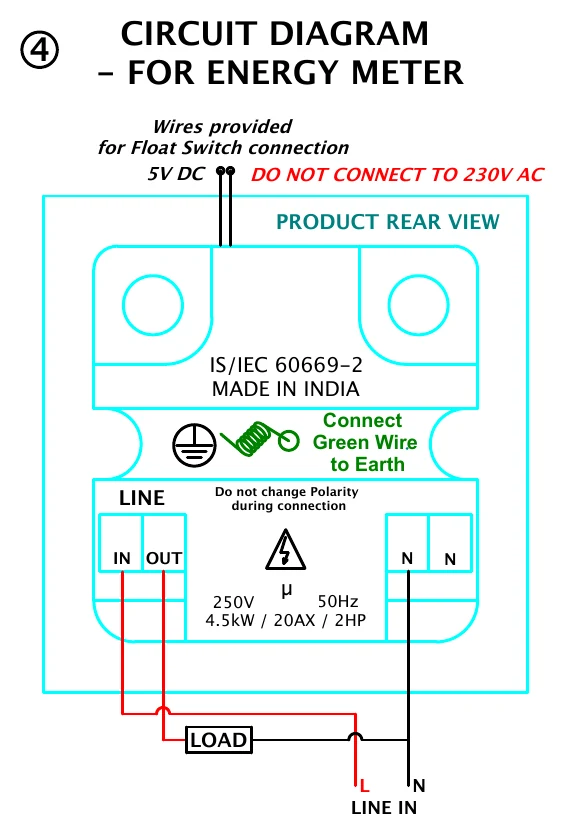
| From (Supply/Device) | → | To (Load/Accessory) |
|---|---|---|
| Mains Live (Phase) | → | SwiGO LINE → IN |
| SwiGO LINE → OUT | → | Load Live (always-on) |
| Mains Neutral | → | SwiGO N (either terminal) |
| Direct | → | Load Neutral |
2.10 Circuit 5: Pressure Pump / Booster Pump — Protection-Only Mode
For pressure pumps and booster pumps where the pump has its own pressure switch. The SwiGO SuperSmart provides over-current, under-current, and voltage protection without interfering with the pump's built-in pressure-based start/stop logic.
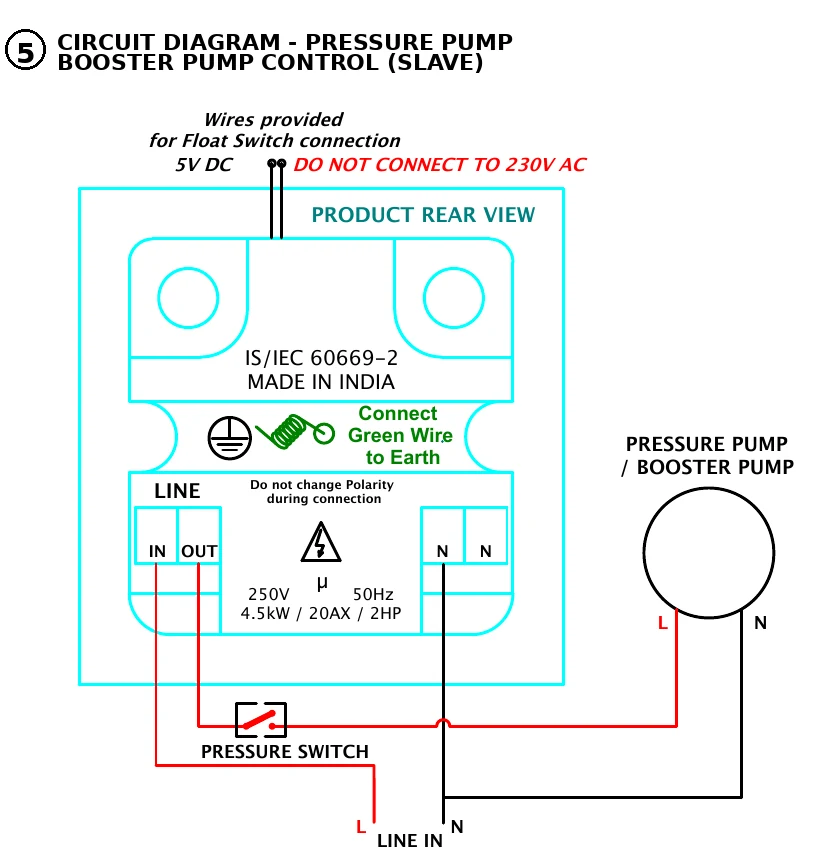
| From (Supply/Device) | → | To (Load/Accessory) |
|---|---|---|
| Mains Live (Phase) | → | SwiGO LINE → IN |
| SwiGO LINE → OUT | → | Pressure switch input |
| Pressure switch output | → | Pump Live terminal |
| Mains Neutral | → | SwiGO N (either terminal) |
| Direct | → | Pump Neutral terminal |
2.11 Circuit 6: Submersible Pump with EVIQtech Self-Starter
For submersible pumps paired with the EVIQtech Self-Starter unit. The SwiGO SuperSmart controls and protects the submersible pump while the Self-Starter handles motor starting requirements.
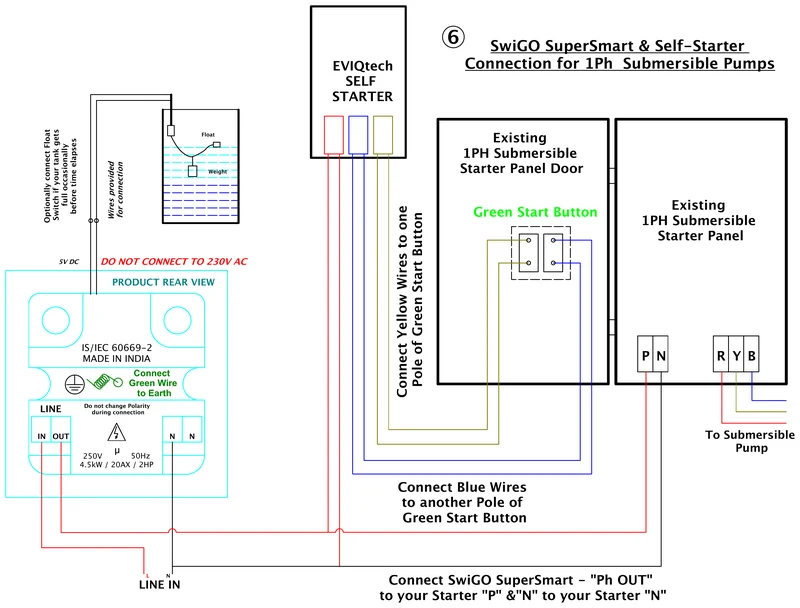
| From (Supply/Device) | → | To (Load/Accessory) |
|---|---|---|
| Mains Live (Phase) | → | SwiGO LINE → IN |
| SwiGO LINE → OUT | → | Submersible Pump Live and Self-Starter input Live |
| Self-Starter Yellow & Blue pair wires | → | Existing starter's Start button |
| Mains Neutral | → | SwiGO N (either terminal) |
| SwiGO N (other terminal) or direct | → | Self-Starter / Pump Neutral |
| SwiGO 5V DC wires | → | Float switch (see Annexure B) |
| SwiGO Green wire | → | Earth connection |
3. Getting Started
Setting up the SwiGO SuperSmart involves two choices: how the device connects (the three modes below) and what you control it with (the Android app or the built-in portal in any web browser). Both choices are independent — every mode works with both tools.
3.1 The Three Modes
| Mode | How it connects | Internet needed | Best for |
|---|---|---|---|
| 1 — Local only (AP) | The device creates its own WiFi access point; you connect your phone or laptop directly to it | No | Fields, farms and pump houses with no router |
| 2 — WiFi network | The device joins your home or office WiFi router; anyone on the same network can reach it | No | Control from anywhere inside the building |
| 3 — Cloud | The device joins your WiFi and links to the EVIQtech Cloud | Yes | Monitoring and control from anywhere in the world |
The modes build on each other: a device on WiFi still falls back to its own access point when the network is unavailable, and a cloud-linked device keeps working locally even when the internet is down.
3.2 Two Ways to Control the Device
| Your device | What to use | What you need |
|---|---|---|
| Android phone / tablet | EVIQtech app (Section 4) or any browser | Google Play Store — search "EVIQtech" |
| iPhone / iPad | Built-in portal in a browser (Section 5) | No install — Safari, Chrome or Firefox |
| Mac, Windows or Linux | Built-in portal in a browser (Section 5) | No install — any modern browser |
3.3 Installing the EVIQtech App (Android only)
3.4 Enabling Bluetooth and WiFi (Android)
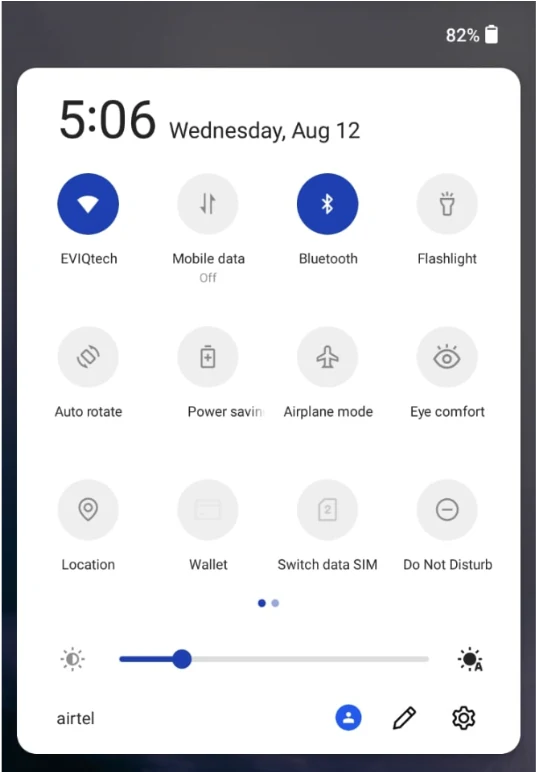
WiFi is needed in every mode. Bluetooth is needed only for BLE pairing (Section 4.4), which is the app's quick route to WiFi and cloud setup.
3.5 First Power-On
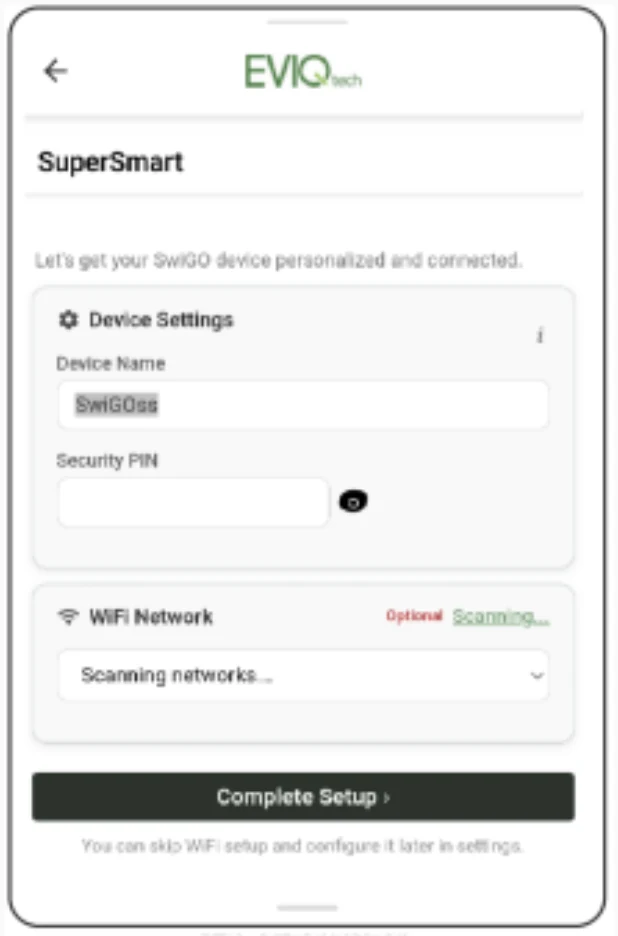
Out of the box (or after a factory reset) the device has no name, no PIN and no WiFi network. Within about 10 seconds of power-on it creates its own WiFi access point called SwiGOss_AP. Before you can use it you must give it a Device Name and a 4-digit Security PIN — there is no default PIN.
How you do that depends on which tool you use:
- Android app: Bluetooth (BLE) pairing sets the name, PIN, WiFi and cloud link in one flow — see Section 4.1.
- Any browser: connect to the device's access point and fill in the Initial Setup page — see Section 5.1.
4. Using the EVIQtech App (Android)
The app has three tabs at the bottom: Local (devices on the same network or access point), Cloud (devices linked to your cloud account) and More. This section covers all three modes from the app; the screens you see after unlocking are described in Section 6.
4.1 First-Time Setup with the App
Pick the route that matches what you want the device to do. Most installations use BLE pairing, which sets the device name, PIN and WiFi network — and the cloud link if you want it — in a single flow.
| What you want | Route |
|---|---|
| WiFi and cloud (control from anywhere) | Route A — BLE pairing, with "Connect to cloud" ticked |
| WiFi only, no cloud (control inside the building) | Route A — BLE pairing, leaving "Connect to cloud" unticked |
| Local only — no router, no internet | Route B — set up over the device's own access point |
Route A — BLE Pairing (WiFi, with or without cloud)
Bluetooth pairing is the quickest route and the only one that can link the cloud during setup. Steps 13 and 14 are needed only if you want the cloud; skip them for a WiFi-only device.
Before you start
- SwiGO SuperSmart powered ON
- Bluetooth and WiFi enabled on your Android phone (Section 3.4)
- EVIQtech app installed
- Home WiFi name (SSID) and password ready — 2.4 GHz
- The email address of your EVIQtech cloud account
Activate pairing and scan
Grant permissions
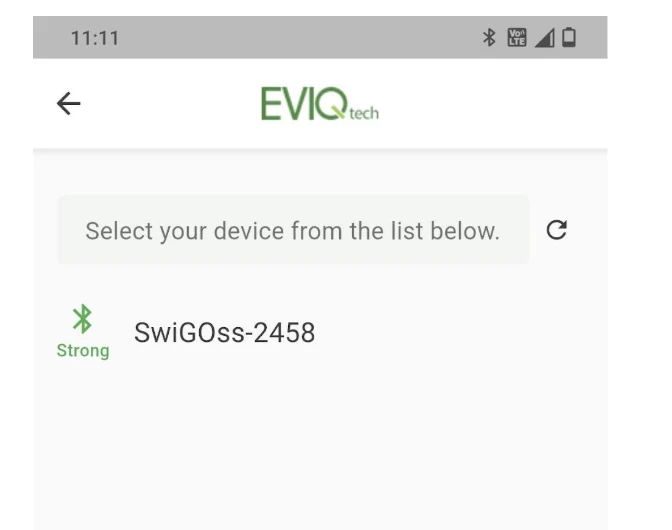
Select your device
Configure the device
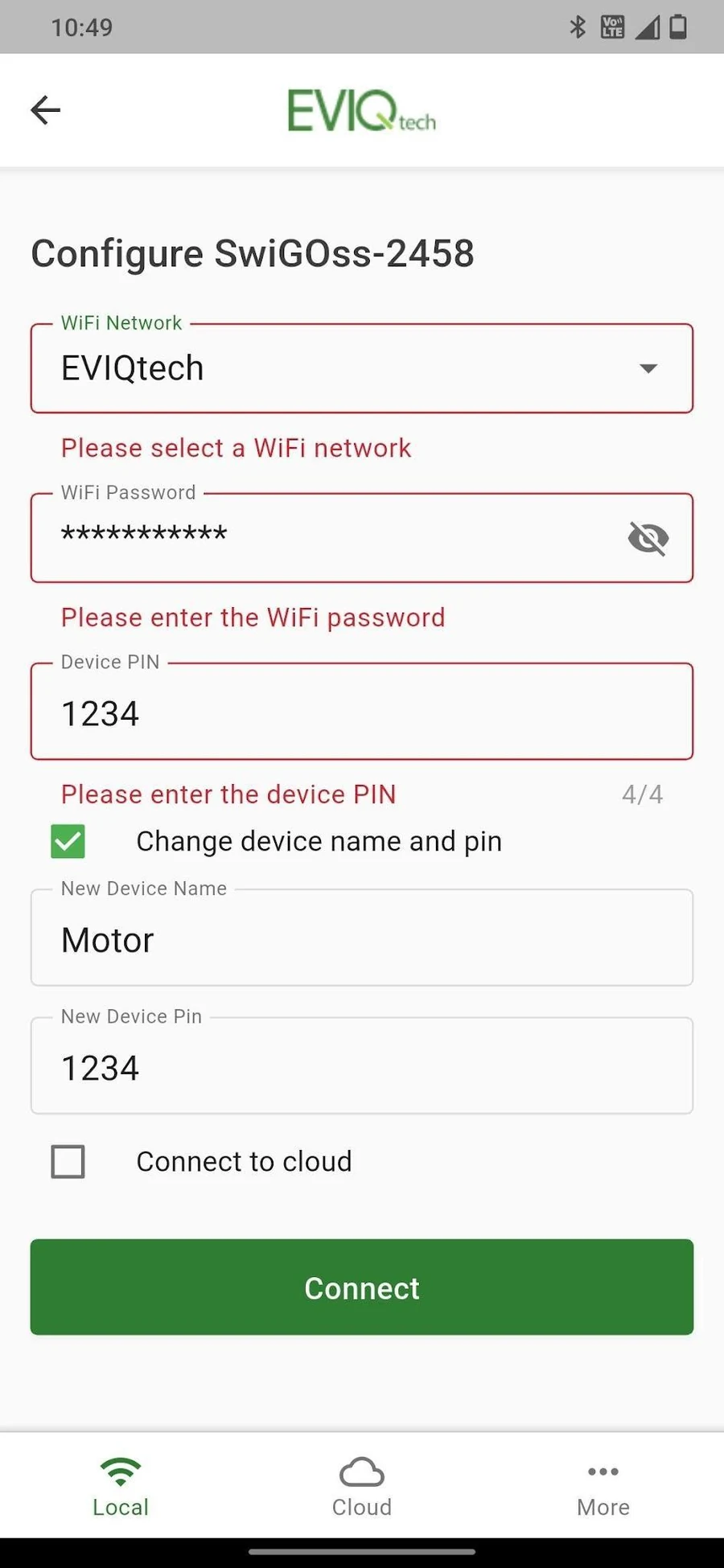
As of firmware 1.14.11 and later, configuration uses a single page that matches the Initial Setup screen, so the fields are the same ones you saw in Section 5.1.
- WiFi Network: pick your 2.4 GHz network from the dropdown list
- WiFi Password: enter the password; tap the eye icon to check what you typed
- Device PIN: the device's current 4-digit PIN, which unlocks it for configuration
- Change device name and pin: tick this box to rename the device or set a different PIN.
Two more fields appear:
- New Device Name — a memorable name such as "Motor1", "Pump" or "Tank"
- New Device Pin — the 4-digit PIN you will use from now on
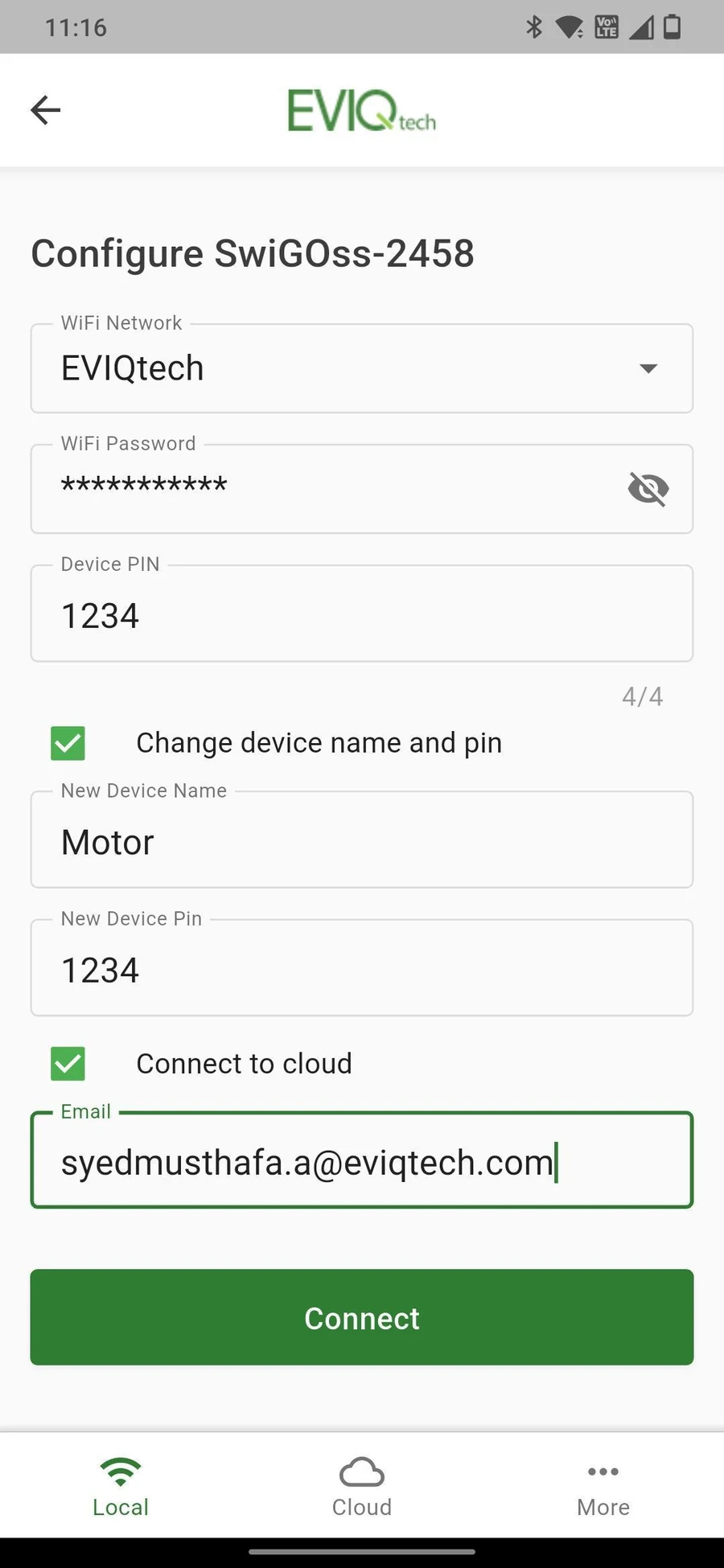
- Connect to cloud: tick to link the device to your cloud account. An Email field appears — see the next step. Leave it unticked for a WiFi-only device.
Link the cloud account
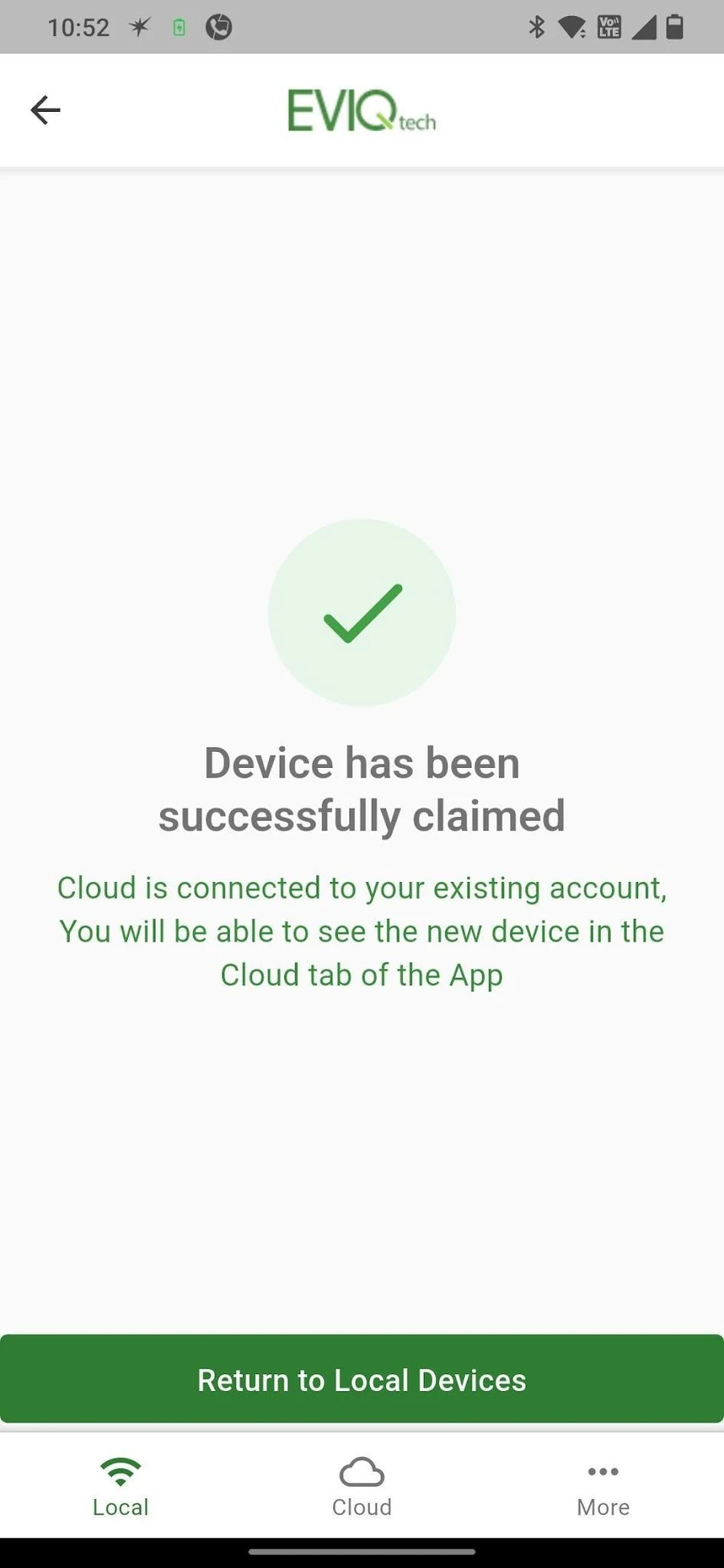
Check local access
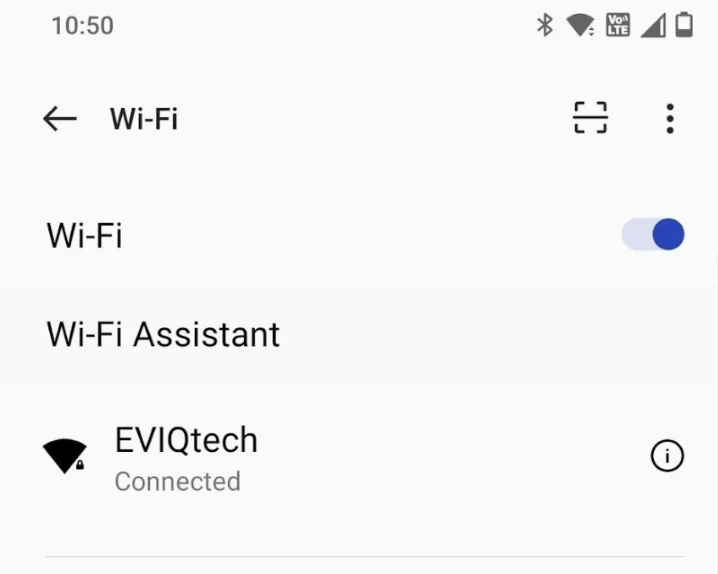
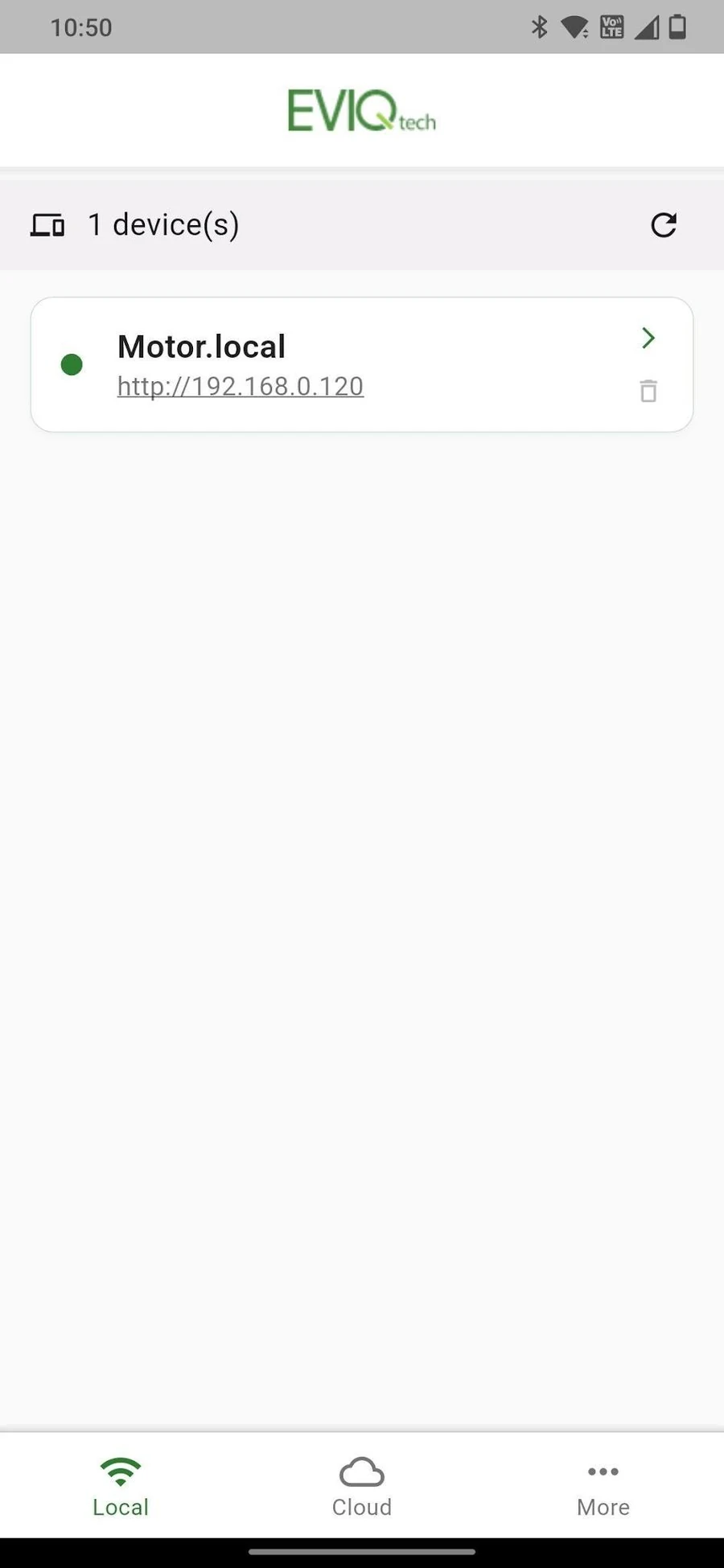
The device now appears in both tabs: Local when you are on the same network, and Cloud from anywhere (Section 7).
Route B — Local-Only Setup Over the Access Point
Use this when there is no WiFi network at the site. The device keeps its own access point, and you control it from the app whenever your phone is connected to that access point.
4.2 Mode 1 — Local Only (Access Point)
Use this where there is no router, or before the device has been given a WiFi network. The device makes its own WiFi network and the app talks to it directly.
4.3 Mode 2 — WiFi Network
Once the device joins your router, every phone and computer on that network can reach it. You can set the WiFi during the first-time setup (Section 5.1, Step 4), through BLE pairing (Section 4.4), or at any time from Settings.
4.4 Mode 3 — WiFi & Cloud
Linking the device to your EVIQtech account adds remote control and monitoring from anywhere, activity logs, energy charts and multi-device management. The device keeps working locally whether or not the cloud is connected.
- During first-time setup: tick "Connect to cloud" during BLE pairing (Section 4.1, Route A).
- On a device already in use: open it in the app and go to Settings → Cloud Settings (Section 6.7).
Once linked, the device appears in the app's Cloud tab and at iot.eviqtech.com in any browser (Section 7).
4.5 Moving Between Modes
- WiFi unavailable: the device returns to its own access point within about 15 seconds, so it never becomes unreachable.
- Reach it locally while it stays on WiFi: hold the Red button for 5 seconds to open the access point in parallel.
- Change to a different WiFi network: hold Violet + Red for 10 seconds to clear the saved network, then set the new one as in Section 4.3.
- Add or remove the cloud later: Settings → Cloud Settings (Section 6.7).
5. Using the Built-in Portal (iPhone, iPad, Mac, Windows, Linux)
Every SwiGO SuperSmart serves its own web page, so any device with a browser can control it without installing anything. The portal shows the same screens as the app's Local tab, described in Section 6.
5.1 First-Time Setup in a Browser
On a phone, tablet or computer without the Android app, the device is set up through its own access point. When the SwiGO SuperSmart is powered on for the first time (or after a factory reset), it presents an Initial Setup page where you create your own Device Name and Security PIN. There is no default PIN to remember — you define your own here.
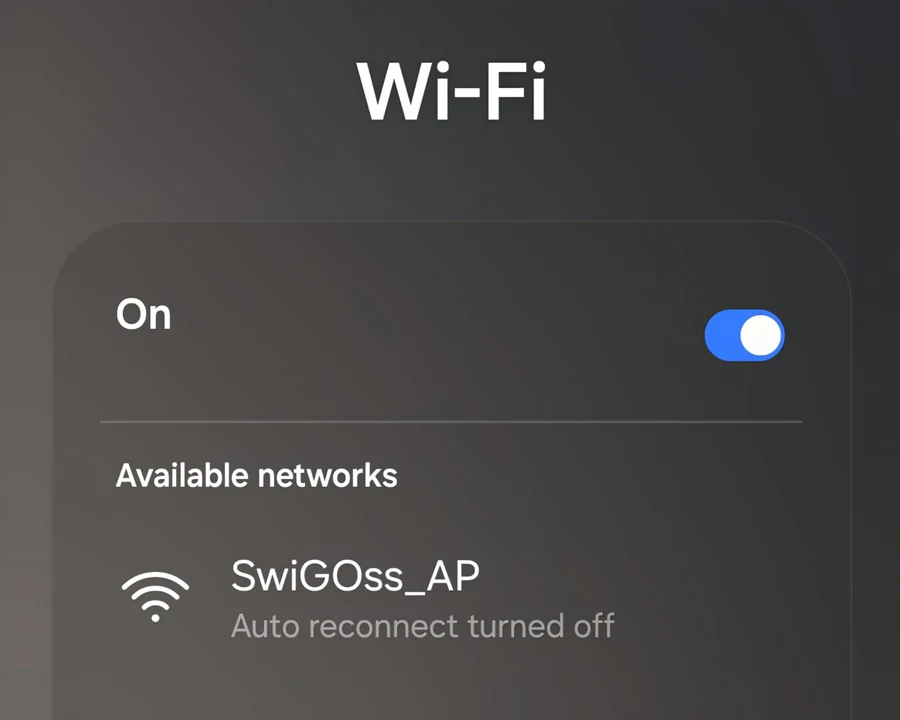
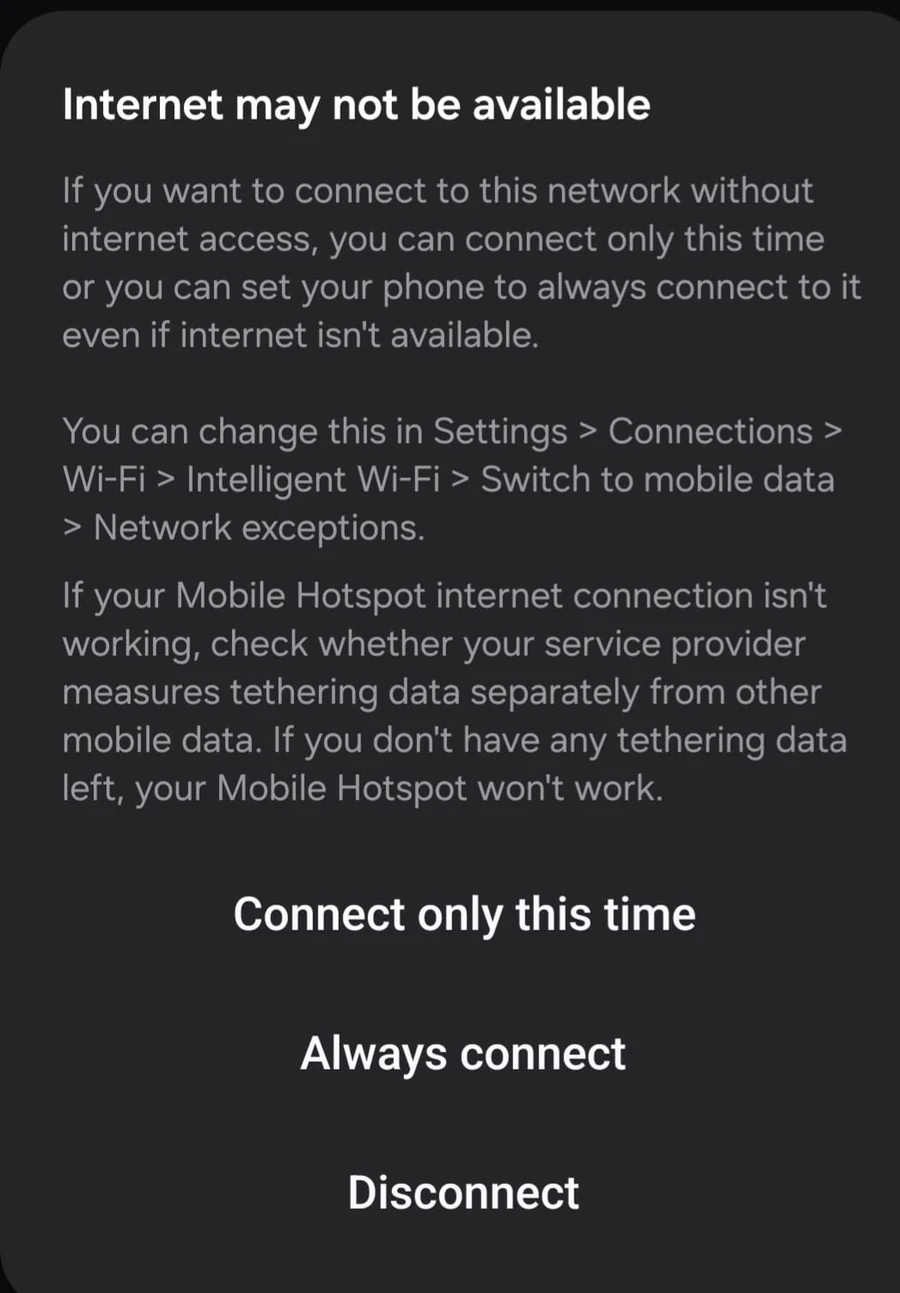
http://192.168.4.1, or http://swigoss.local.
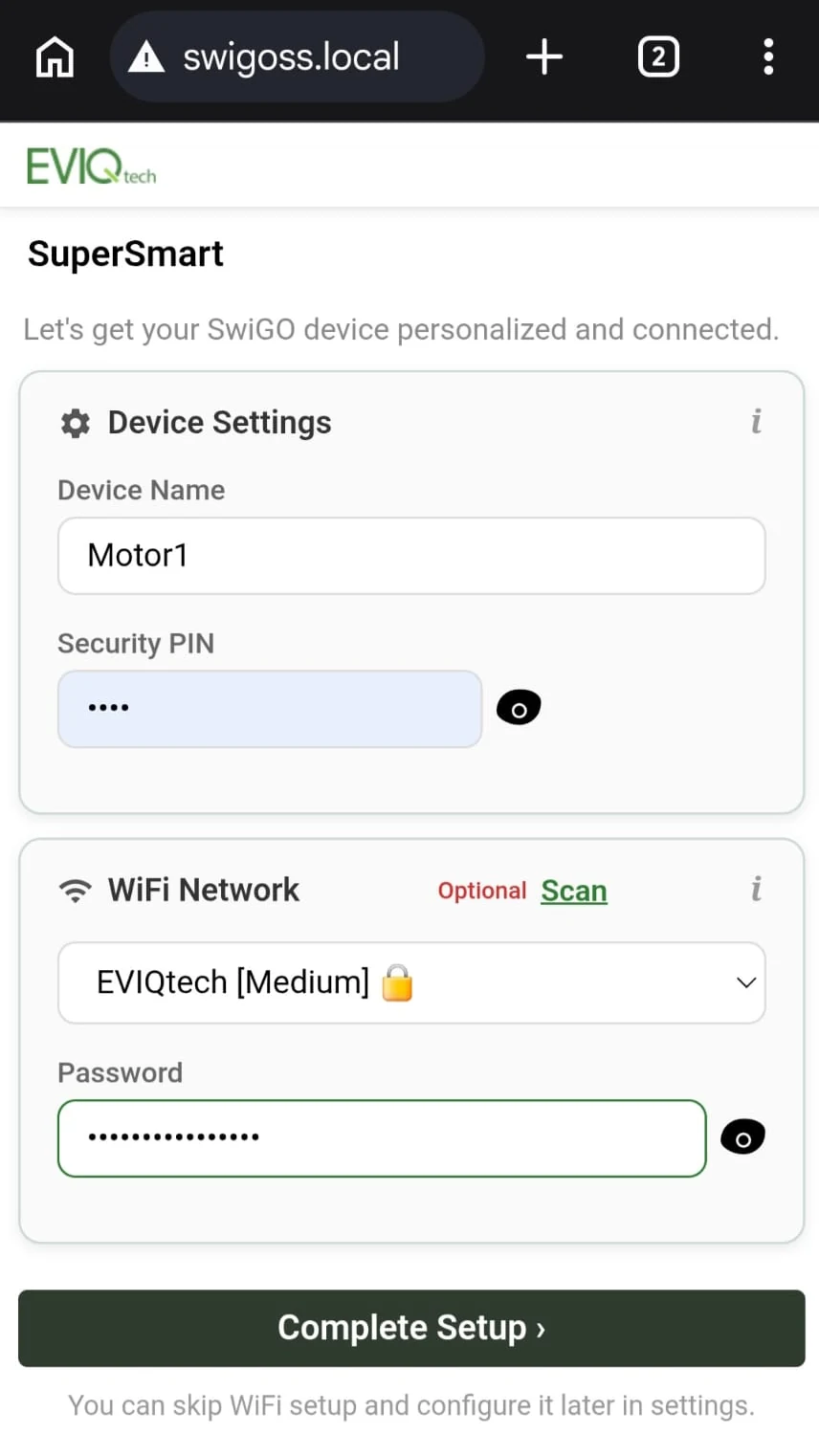
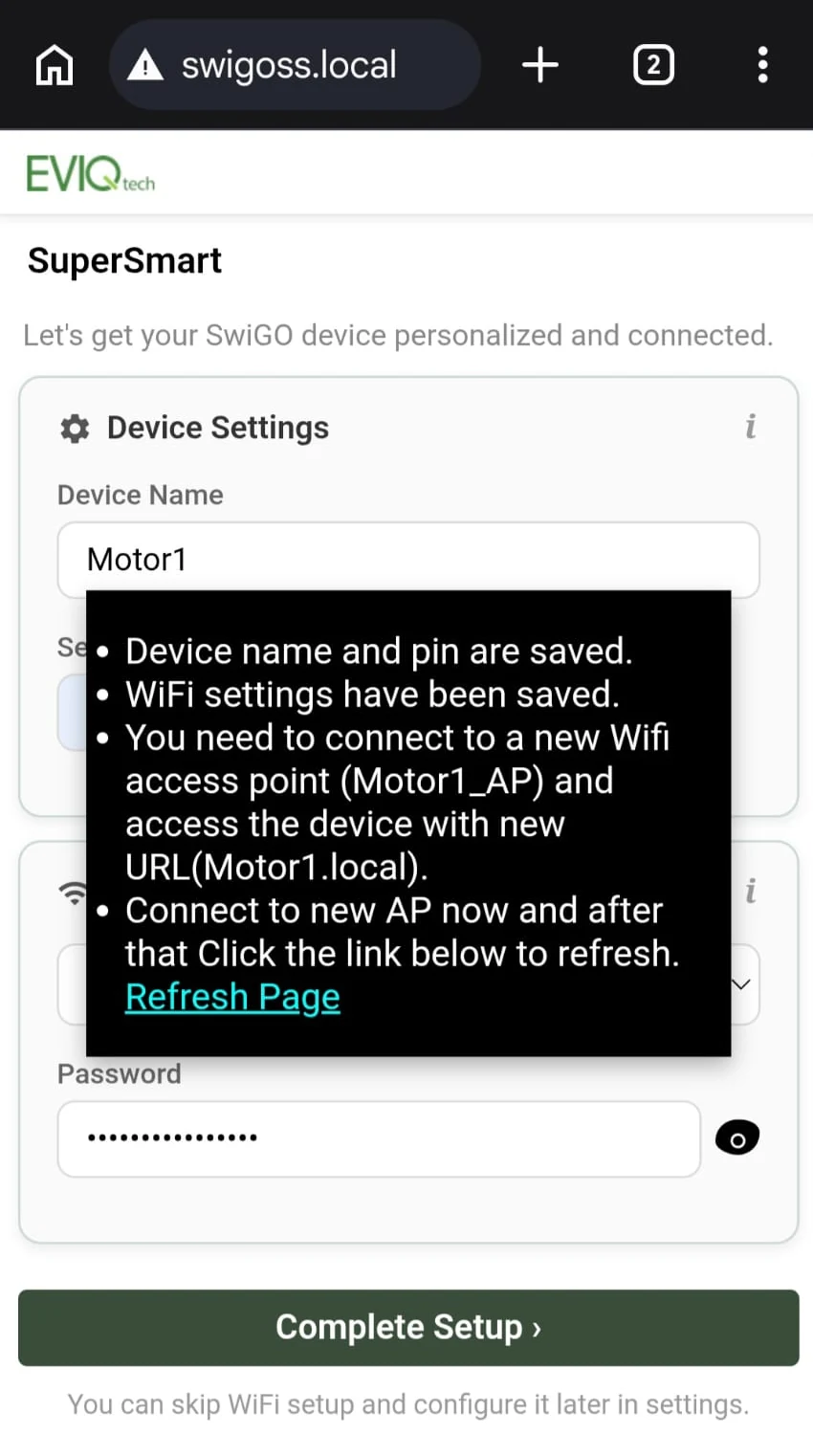
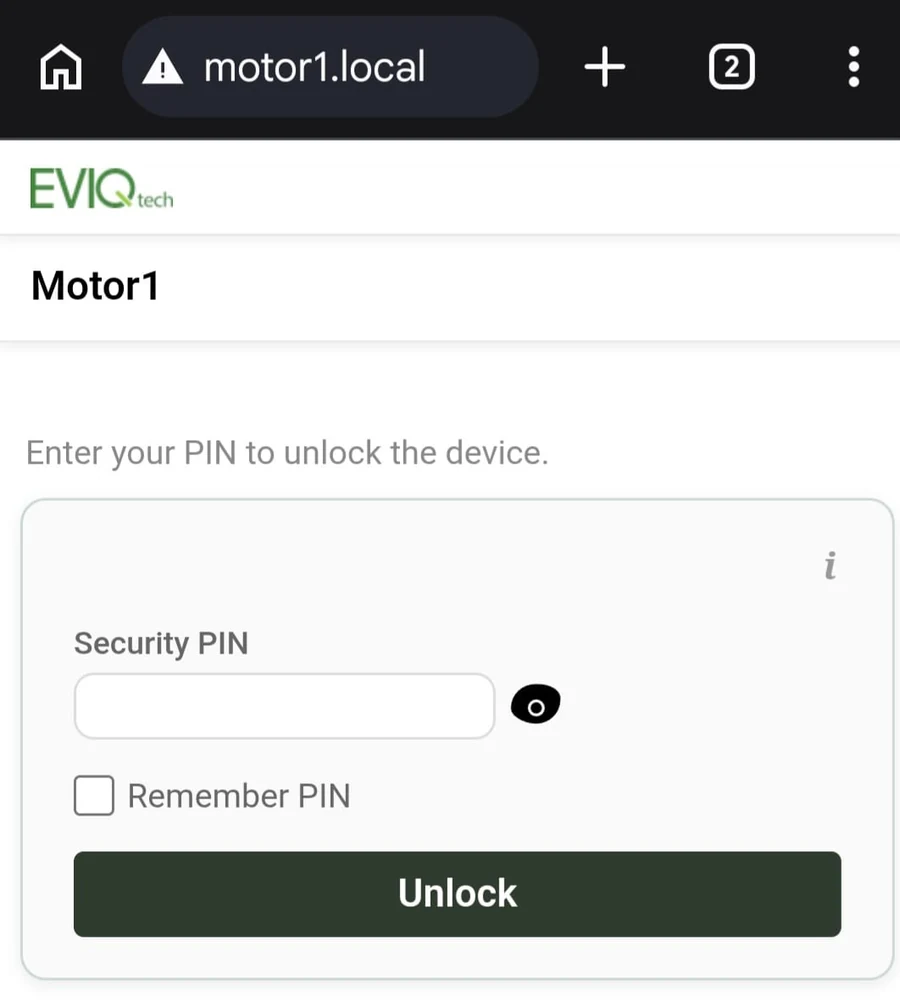
http://DeviceName.local (for example http://motor1.local) or
http://192.168.4.1. Enter the PIN you set in Step 5 and tap Unlock
to reach the device Home page.
5.2 Mode 1 — Local Only (Access Point)
No router is needed: the device makes its own WiFi network and serves the portal on it.
http://192.168.4.1 and press
Enter.http://192.168.4.1 (access point) and
http://DeviceName.local (WiFi) for one-tap access. The session times out after 10 minutes of
inactivity.
5.3 Mode 2 — WiFi Network
Once the device is on your router, open it from any device on the same network. To put it on WiFi from a browser, connect in access point mode first and use Settings → WiFi Settings, exactly as in Section 4.3.
- mDNS name:
http://DeviceName.local(e.g.,http://motor.local) - IP address:
http://[IP assigned by router](e.g.,http://192.168.0.120) — check your router's DHCP client list if needed
5.4 Mode 3 — WiFi & Cloud
You do not need the Android app to put a device on the cloud. Connect the device to WiFi first, then link the account from the portal.
5.5 What You Can Do in the Portal
The portal offers the same functionality as the Android app's Local tab:
- View real-time power monitoring (voltage, current, power, energy)
- Turn the load ON / OFF manually
- Set and manage timer duration
- Configure schedules (daily, weekly, and cyclic)
- Adjust protection settings (dry-run, overload, voltage limits)
- Configure float switch and flow switch modes
- Set up Master-Remote control
- Change device name, PIN, WiFi settings and the cloud link
6. Using the Device Interface
The EVIQtech Android app has three bottom tabs: Local, Cloud, and More. The browser interface (iOS / desktop) mirrors the Local tab exactly, so the screens described in this section apply equally to both.
6.1 Unlocking the Device
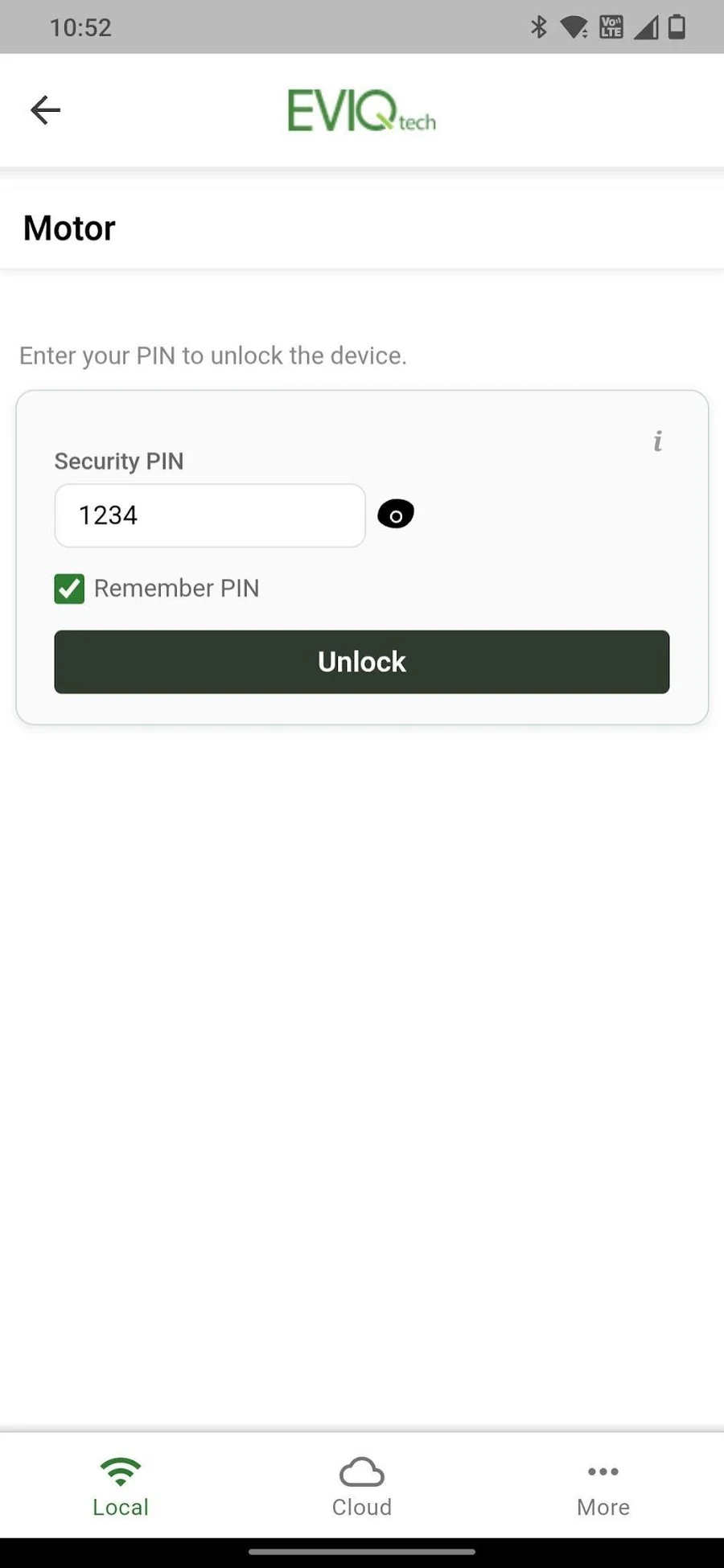
6.2 Home Page (House Icon)
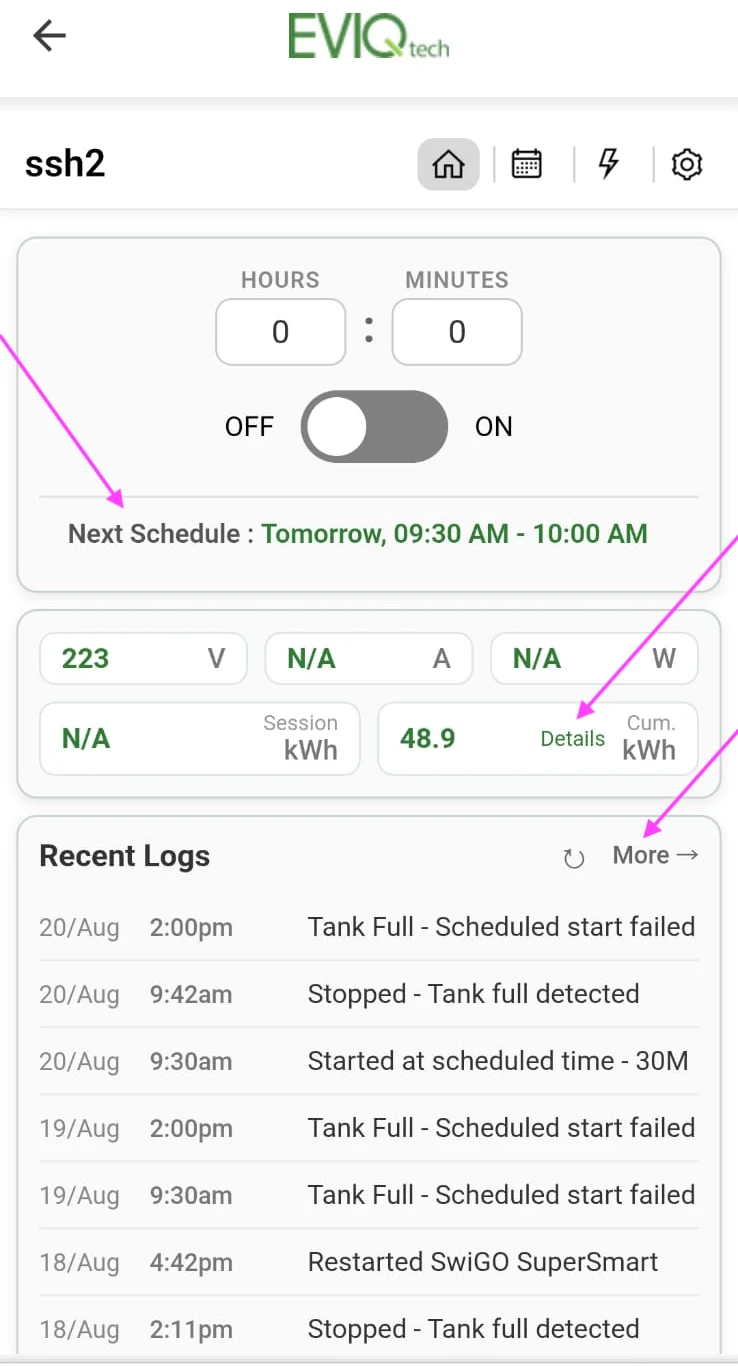
- Hours : Minutes: set a custom timer duration
- OFF / ON toggle: main power switch
- Next Schedule / Fault section (marked): shows the next scheduled run. If a scheduled run could not be completed because of a fault, the fault is shown here instead. A run started with a timer button also shows the fault here, for as long as that button's duration would have lasted. For what each fault looks like on this page, see dry-run and overload alerts and low and high voltage alerts in Section 6.5.
- Voltage (V): real-time mains voltage (for example 230.2V)
- Current (A): real-time current drawn, while the SuperSmart is switched ON
- Power (W): real-time power consumption, while the SuperSmart is switched ON
- Session kWh: energy used in the current session, while the SuperSmart is switched ON
- Cumulative kWh: total energy consumed since the device was first used, or since the cumulative energy was last reset
- Details link (marked): opens the list of recent sessions with their energy
- Recent Logs: timestamped activity log — tap "More" (marked) for the full history
3-Phase Monitoring on the Home Page
(Applicable to EVIQtech's Three-Phase Starter with VSMR installation only)
When the SwiGO SuperSmart is used as a three-phase starter with EVIQtech's VSMR (Voltage Sequence
Monitoring Relay) integrated, the Home page shows all three phase voltages instead of a single
voltage reading. Each phase has its own reading box — R-Phase, Y-Phase
and B-Phase — and a phase status line below them reports the health of the supply.
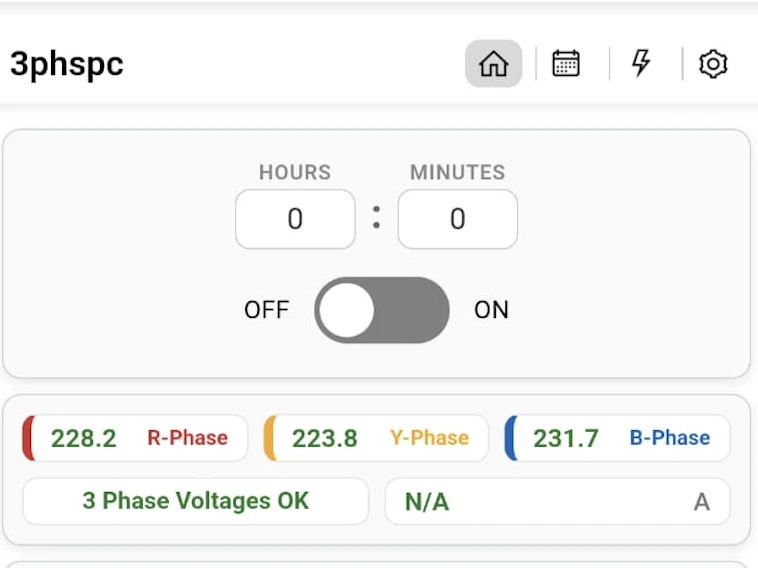
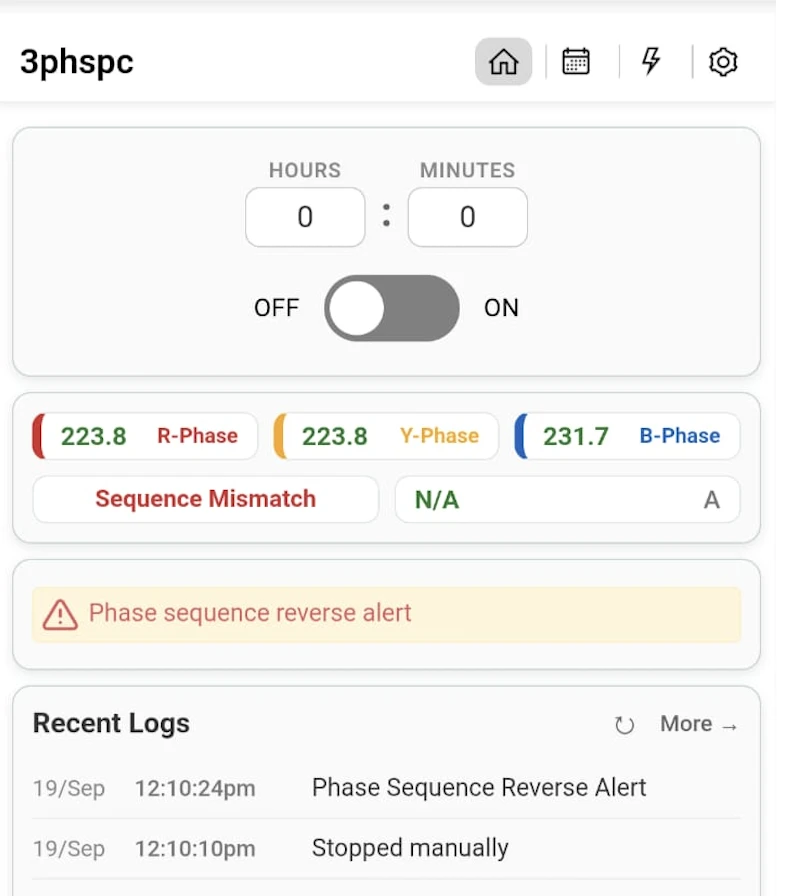
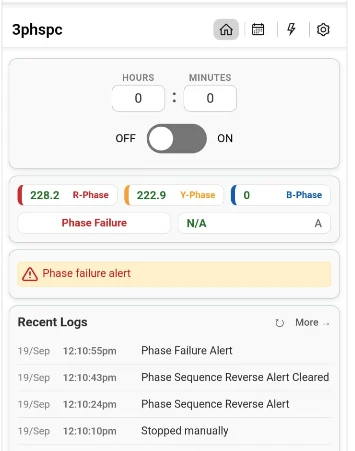
- R / Y / B phase voltages: The live voltage of each phase, shown in its own colour-coded box. A failed phase reads 0.
- 3 Phase Voltages OK: All three phases are present and in the correct sequence. The motor can be started.
- Sequence Mismatch: The phase sequence is reversed, which would run the motor in the wrong direction. An alert banner — Phase sequence reverse alert — appears below the readings.
- Phase Failure: One of the three phases is missing or has collapsed. An alert banner — Phase failure alert — appears below the readings.
- Recent Logs: Every phase event is logged with its time, both when it occurs and when it clears (e.g., "Phase Sequence Reverse Alert", "Phase Failure Alert", "Phase Sequence Reverse Alert Cleared").
6.3 Navigation Icons
- Home (house): Main control panel (default)
- Schedules (calendar): Schedule management
- Protection (lightning): Protection settings and energy data
- Settings (gear): Device configuration
6.4 Schedules Page
The Schedules page lets you automate motor operation with flexible time-based control. Tap the Calendar icon in the navigation bar to access it. You can create multiple schedules, each independently enabled or disabled.
Schedule Configuration Options
- + Add Schedule: Tap to create a new schedule entry
- Schedule Type: Choose Daily (runs every day) or Weekly (select specific days M/T/W/T/F/S/S)
- Schedule Mode: Choose Clock Based (runs from Start Time to End Time) or Duration Based (runs for a set Duration within the Start–End window — see below)
- Start Time: The time (HH:MM) when the motor should turn ON
- End Time: The time (HH:MM) when the motor should turn OFF
- Is Cyclic: Check this box to enable repeating ON/OFF cycles within the scheduled time window
- ON Duration (Hours : Minutes): How long the motor runs in each cycle
- OFF Duration (Hours : Minutes): How long the motor pauses between cycles
- Enable / Disable toggle: Green toggle to activate or deactivate a schedule without deleting it
- Delete: Remove a schedule permanently
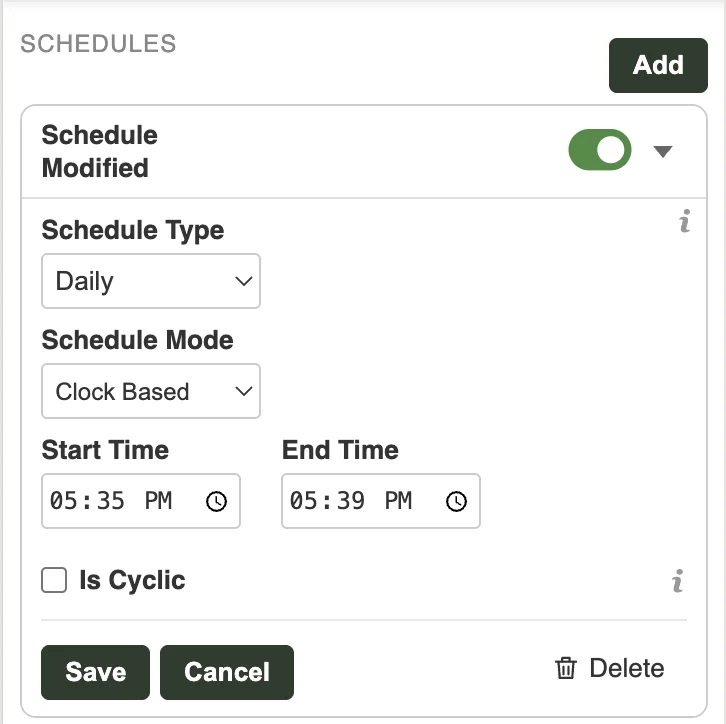
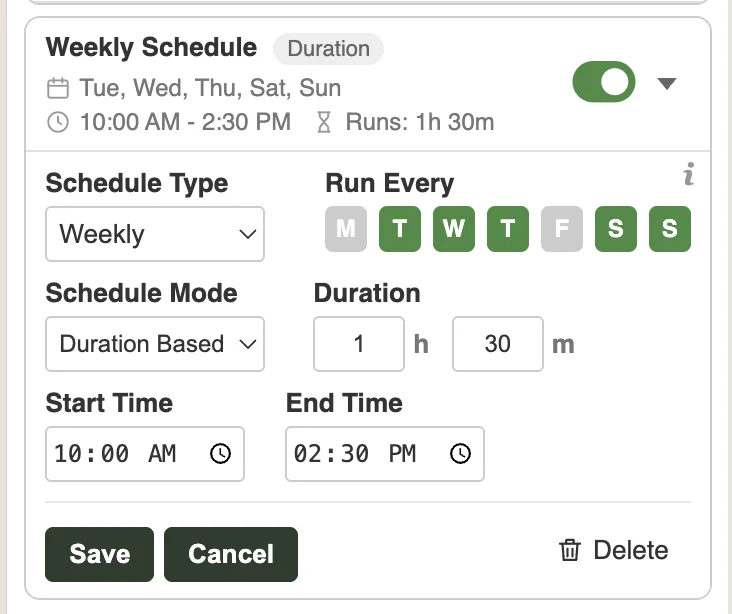
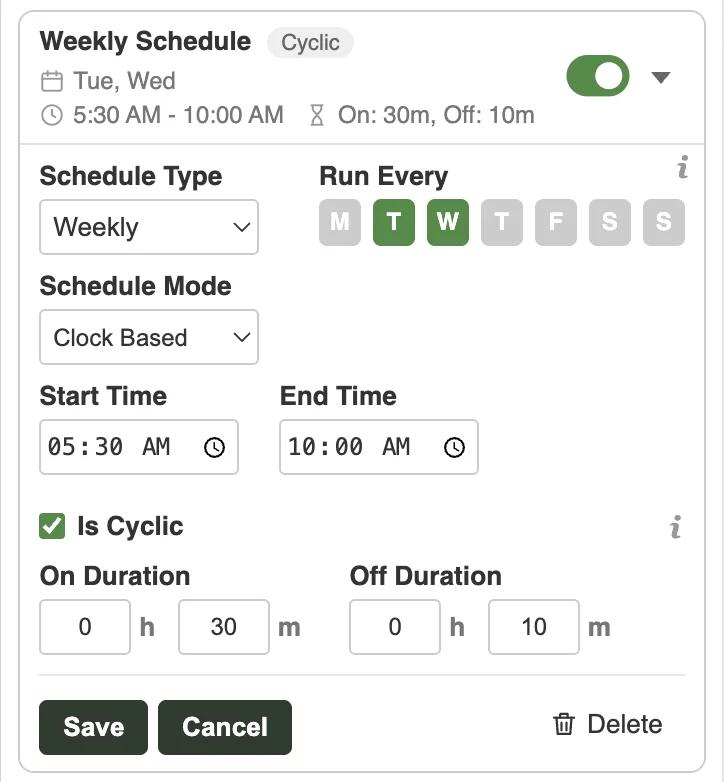
As per the schedule, the device will start and stop automatically. Up to 10 schedules can be added in SuperSmart. Cyclic schedule option can be used to schedule more repeated schedules with a pattern.
Duration Based Scheduling
When Schedule Mode is set to Duration Based, a Duration fields (Hours : Minutes) appear. Instead of running for the whole Start–End window, the motor runs only for the set Duration within that window. For example, with Start Time = 10:00 AM, End Time = 2:30 PM and Duration = 1h 30m, the motor runs for a total of 1 hour 30 minutes between 10:00 AM and 2:30 PM. The schedule card shows this as “Runs: 1h 30m”.
Note: Restart after power resumption (see Section 6.5) — if checked, the SuperSmart resumes automatically after a power outage, if the scheduled timing is still remaining.
Note: The Cloud scheduling interface (Section 7.7) is identical in functionality. Schedules configured via Cloud or Local are written directly to the device.
Cyclic Scheduling (Detailed)
When "Is Cyclic" is checked, additional ON duration and OFF duration fields appear. Instead of running continuously from Start Time to End Time, the motor will repeatedly cycle ON and OFF within that time window.
How Cyclic works: Suppose you set Start Time = 06:00, End Time = 18:00, ON duration = 30 minutes, OFF duration = 15 minutes. The motor will turn ON at 06:00, run for 30 minutes, turn OFF at 06:30, wait 15 minutes, turn ON again at 06:45, run for 30 minutes, turn OFF at 07:15, and so on — repeating this 30-on / 15-off cycle until 18:00.
- ON Duration (Hours : Minutes): How long the motor runs in each cycle
- OFF Duration (Hours : Minutes): How long the motor pauses between cycles
6.5 Protection Settings
The Protection page provides comprehensive motor and electrical protection. Tap the Lightning icon in the navigation bar to access it. Each protection type can be independently configured and has an info (i) button for on-screen guidance.
Dry-Run Protection (Under-Current)
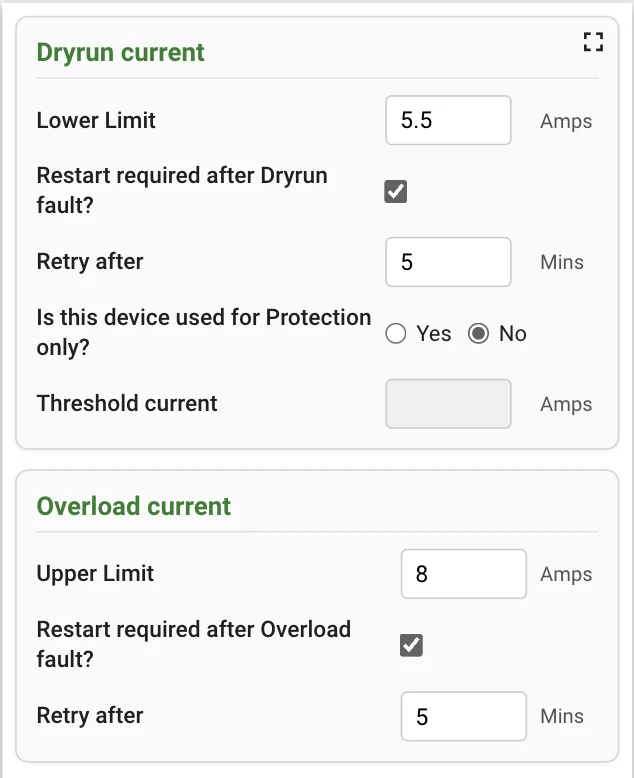
Protects against the motor running without load (e.g., pump running dry when the water source is empty). The device trips and disconnects the motor when the current drawn falls below the configured lower limit. If the fault is already present as the motor starts, the device allows 7 seconds before stopping, which lets the starting current settle. If the fault appears while the motor is already running, it stops after 4 continuous seconds.
- Lower Limit (Amps): Set the minimum current threshold. Set this slightly below the normal running current of your motor.
- Auto-restart: When enabled, the device automatically attempts to restart the motor after a configurable delay (in minutes). Useful when the water source may refill over time.
- Protection-only mode: For setups where the device monitors current but does not switch the load directly (e.g., Circuit 5 — booster pump with pressure switch, where the pressure switch does the switching based on the set pressure levels). The device reports the fault and disconnects the load only if there is a fault.
Overload Protection (Over-Current)
Protects against excessive current draw, which can indicate a motor jam, mechanical blockage, bearing failure, or short circuit. The device trips when the current exceeds the configured upper limit. If the fault is already present as the motor starts, the device allows 7 seconds before stopping, which lets the inrush current settle. If the fault appears while the motor is already running, it stops after 4 continuous seconds.
- Upper Limit (Amps): Set the maximum current threshold. Set this slightly above the normal running current but below the motor's rated maximum.
- Auto-restart: Use with caution for overload; repeated overloads may indicate a mechanical problem that requires physical inspection.
- Alerts and logs: An overload is reported on the Home page exactly the way a dry run is — a red alert naming the fault while the condition persists, then the stopped message with the Reset Fault Conditions link, and a log entry giving the reason with the voltage and current at the moment of the trip. See the two screens under Dry-Run Protection above.
What You See on the Home Page
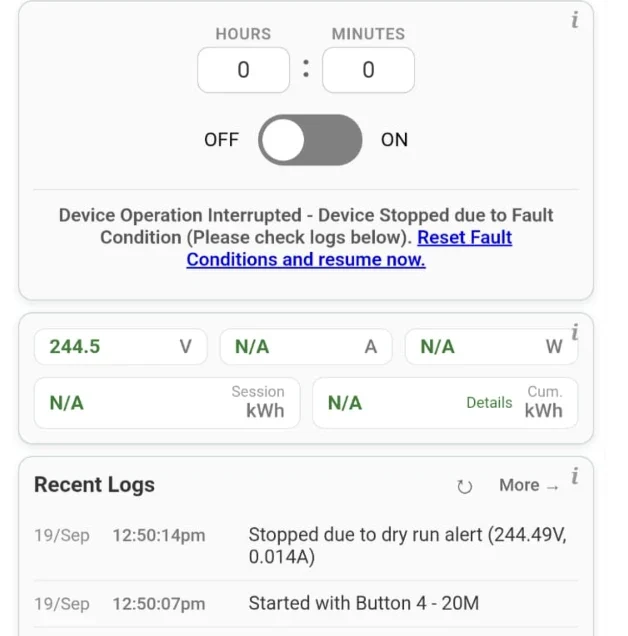
The fault is reported on the Home page of the embedded portal immediately. — Once the device is stopped between 4 to 7 seconds it is indicated in the logs
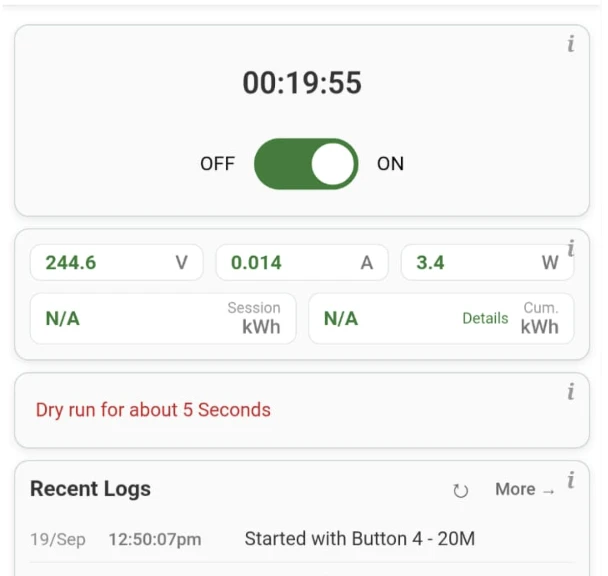
- While the fault is building up: the motor is still running and a red alert appears above the readings — for example, "Dry run for about 5 Seconds". This tells you the current has been below the lower limit and for how long, so you can watch the live current reading and judge whether the limit is set correctly.
- After the device trips: the toggle returns to OFF and the Home page shows "Device Operation Interrupted — Device Stopped due to Fault Condition (Please check logs below)", together with a Reset Fault Conditions and resume now link. Tapping that link clears the fault and allows an immediate restart, without waiting for the retry delay.
- Readings while stopped: current and power show N/A because the load is disconnected; voltage continues to be displayed.
- Recent Logs state the reason clearly: the stop is logged with its time and the exact readings at the moment of the trip — for example, "Stopped due to dry run alert (244.49V, 0.014A)". The entry just above it shows how the motor was started ("Started with Button 4 - 20M"), so the full sequence — how it started, how long it ran and why it stopped — can be read off the log.
Voltage Protection
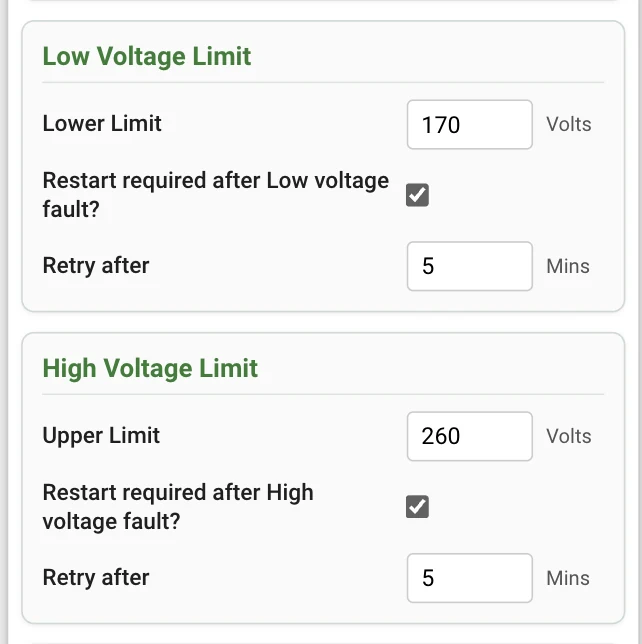
Protects equipment from dangerous voltage fluctuations. The device continuously monitors mains voltage and trips within 7 seconds if voltage goes outside the configured safe range.
- Low Voltage Limit: Default 150V. Motor trips if mains voltage drops below this value. Low voltage causes motors to draw excessive current, leading to overheating and potential winding damage.
- High Voltage Limit: Default 290V. Motor trips if mains voltage exceeds this value. High voltage can cause insulation breakdown and immediate motor damage.
- Auto-restart (Low V): Automatically reconnects when voltage returns to normal range, after the configured delay.
- Auto-restart (High V): Automatically reconnects when voltage returns to normal range, after the configured delay.
What You See on the Home Page
Voltage alerts differ from dry-run and overload alerts in one important way: mains voltage is monitored continuously, so a low voltage or high voltage alert is shown whether the device is switched ON or OFF. A dry run or an overload can only be detected while the motor is running, but an unsafe supply is reported at all times — which also tells you why the motor will not start.
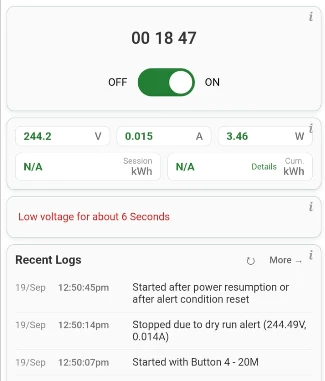
- While the voltage is outside limits and the motor is running: a red alert appears above the readings — for example, "Low voltage for about 6 Seconds" — and the motor keeps running until the 7-second trip time is reached.
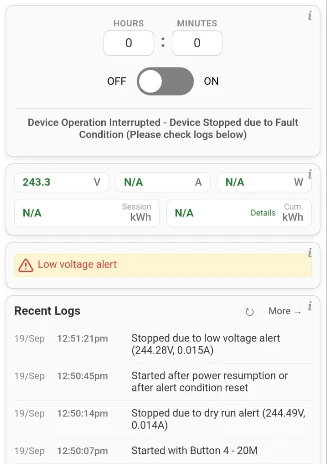
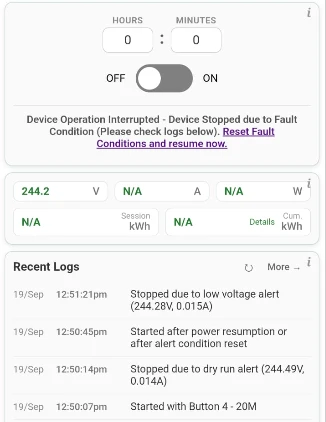
- After the device trips: the toggle returns to OFF and the Home page shows "Device Operation Interrupted — Device Stopped due to Fault Condition (Please check logs below)". Current and power show N/A; the voltage reading stays live so you can watch the supply recover.
- While the supply is still unsafe: a Low voltage alert (or High voltage alert) banner is displayed below the readings. This banner is visible with the device switched OFF as well — if the motor will not start, this is the reason.
- Once the voltage returns to the safe range: the alert clears, but the SuperSmart does not restart at once. With Auto-restart (Low V / High V) enabled it waits out the configured retry delay before reconnecting — the delay is deliberate, giving the supply time to stabilise instead of switching the motor back onto a fluctuating line. If you do not want to wait, the Reset Fault Conditions and resume now link on the Home page clears the fault and restarts the motor immediately.
- Recent Logs state the reason clearly: the stop is logged with the readings at the moment of the trip — for example, "Stopped due to low voltage alert (244.28V, 0.015A)" — and the restart is logged as "Started after power resumption or after alert condition reset". Reading the log from the bottom up gives the whole sequence of events.
Additional Protection Settings
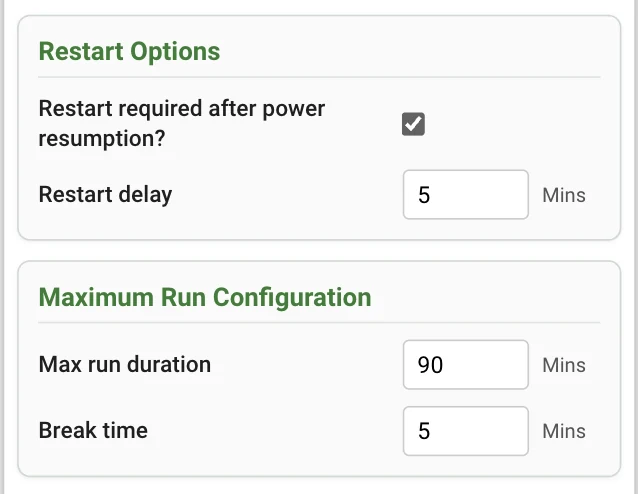
- Restart after power resumption: When enabled, the motor automatically restarts after a complete power outage (blackout). Useful for unattended installations like farm pumps or sump pumps.
- Restart delay (Mins): Wait time after power returns before restarting the motor. Allows the power supply to stabilize and prevents rapid on-off cycling. Recommended: 2–5 minutes.
- Max run Duration (Mins): Maximum time the device can run at a stretch. Acts as a safety backstop (e.g., if a float switch fails). Set to 0 to disable. If there is a maximum runtime limit for the motor or appliance, set it here.
- Break time (Mins): After the max run duration is reached, how long a gap or break should be given before running again.
Fault Detection Timing and Delays
The SwiGO SuperSmart uses specific timing sequences to distinguish genuine faults from normal operating transients:
- Fault present at start-up (7 seconds): When the motor is first switched ON, current readings are ignored for 7 seconds. This allows the motor's inrush current (which can be several times the normal running current) to settle down. Both dry-run and overload detection begin only after this grace period.
- Fault during a run (4 seconds): Once the motor is running, if a dry-run or overload condition is detected, the device waits for 4 continuous seconds to confirm it is a genuine fault and not a momentary spike or dip.
- Voltage fault timing (7 seconds): Voltage faults are detected within 7 seconds. If the voltage exceeds the high limit or falls below the low limit and remains outside the safe range for 7 seconds, the device trips.
- LED blink duration (6 seconds): When a fault is detected and the device trips, the fault LEDs blink rapidly for 6 seconds to alert the user. After blinking stops, the LEDs remain in their fault state until the fault is cleared or auto-restart occurs.
- Retry after (delay timer): When auto-restart is enabled, the 'Retry after' field specifies the delay in minutes before the device attempts to restart. If the fault persists, the device trips again and waits for another retry cycle. This continues within the scheduled time period only — if the retry time falls outside the scheduled window, the device will not restart.
6.6 Settings Page (Gear Icon)
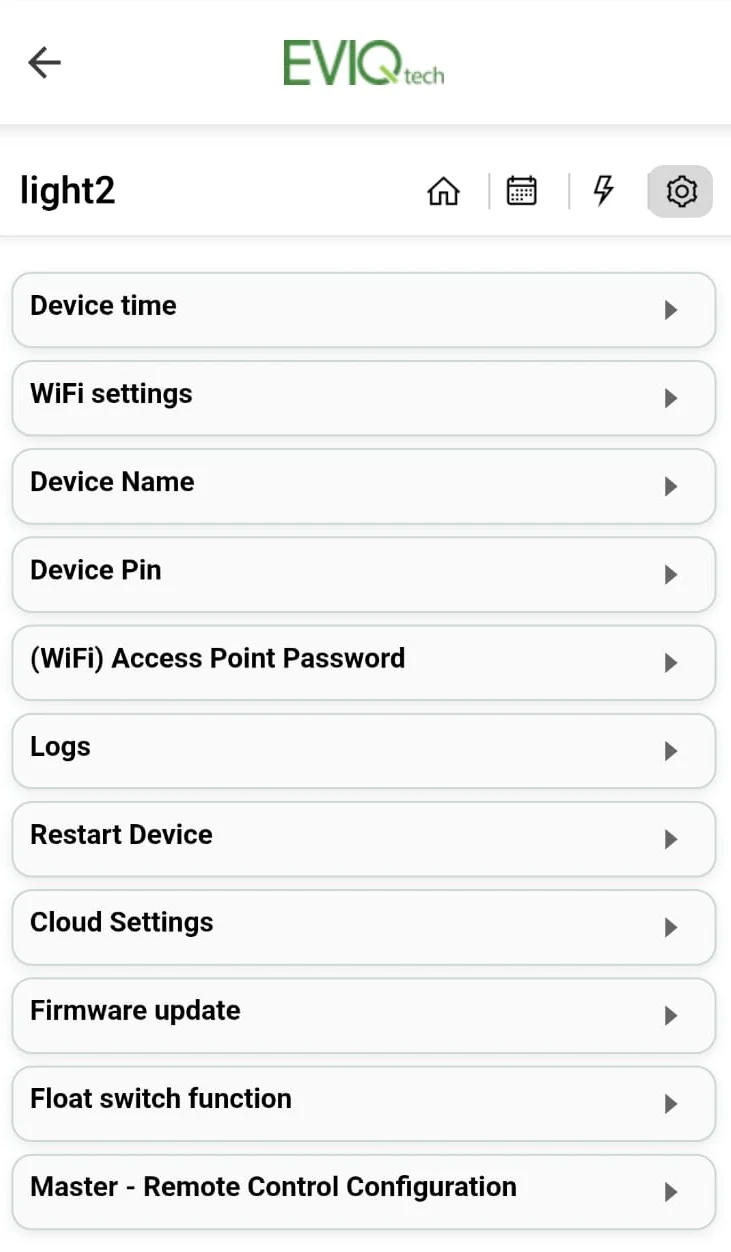
The Settings page provides access to all device configuration options. Tap the Gear icon in the navigation bar.
- Device time: View the current device clock and sync it with your phone.
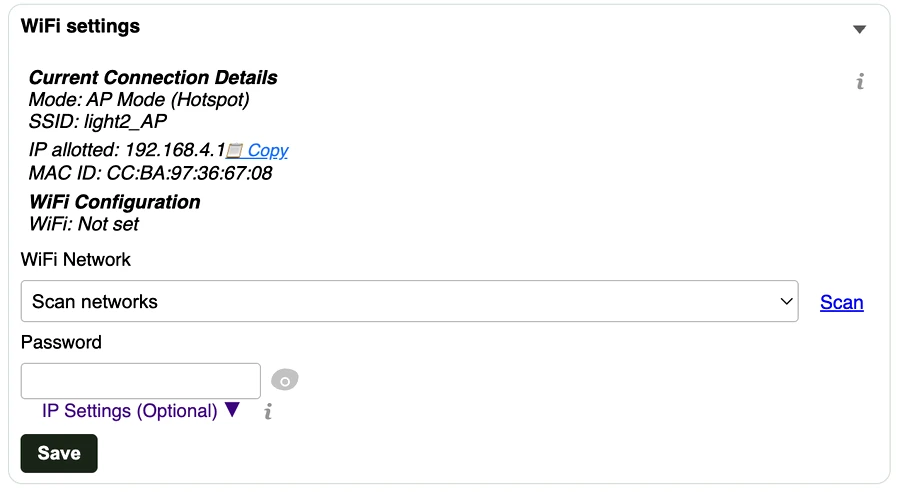
- WiFi settings: View current connection details (Mode, SSID, IP, MAC). Change WiFi network, scan for available networks, set a static IP address.(See Annexure A).
- Device Name: Rename the device (e.g., Motor, Pump). After renaming, you must reconnect to the new AP name.
- Device PIN: Change the 4-digit security PIN.
- AP Password: Change the password for the device's own WiFi Access Point broadcast.
- Logs: View recent activity logs. Clear Logs to reset history. Reset Cumulative Energy to zero the kWh meter.
- Restart Device: Soft reboot. Clear Fault Conditions (override a fault trip without waiting for the retry timer — also overrides Manual Stop during a scheduled run). Logout Application.
- Cloud Settings: Connect or disconnect the EVIQtech Cloud (see Section 6.7).
- Firmware update: Shows current firmware version (e.g., 1.18.0). Select the new firmware file and submit. when prompted for device Pin, enter and proceed. You will be able to download latest firmware from www.eviqtech.com/firmware/swigo_supersmart/latest/.
- Float switch function: Configure float / flow switch modes (see Annexure B).
- Master – Remote Control Configuration: Link devices together (see Annexure C).
AP Password Alert
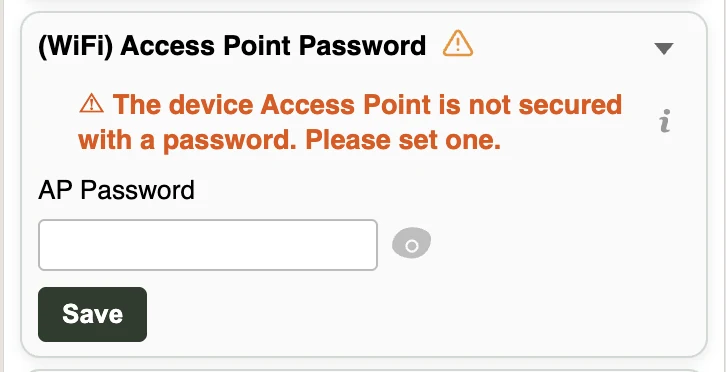
The device's access point is open and has no password, which keeps the first setup simple. Set an AP password afterwards so that nobody nearby can join the device's network and reach its controls. Until you set one, the warning shown here appears on the Settings page.
To set it, open Settings → (WiFi) Access Point Password, type the password you want and tap Save. You will need this password the next time you connect a phone or laptop to DeviceName_AP.
Device AP Password can have 8 to 10 characters in length.
RTC Backup Battery Alert
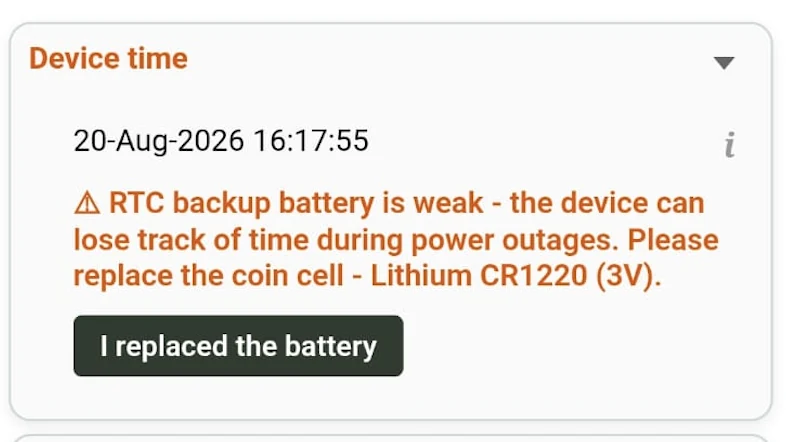
The device keeps its clock running through power cuts with a coin cell on the board. From firmware version 1.19.0, when that battery runs low the Device time section is highlighted in red with the warning shown here.
Replace the coin cell with a Lithium CR1220 (3V), then open Settings → Device time and tap I replaced the battery to clear the alert.
WiFi Settings
The WiFi settings section shows the current connection and lets you give the device a network, change it, remove it, open a parallel access point or set a static IP. Because it covers a lot of ground, it is described on its own in Annexure A.
6.7 Cloud Settings
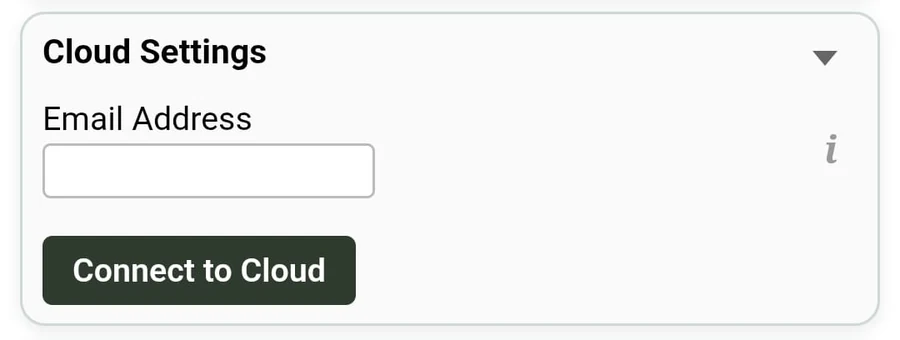
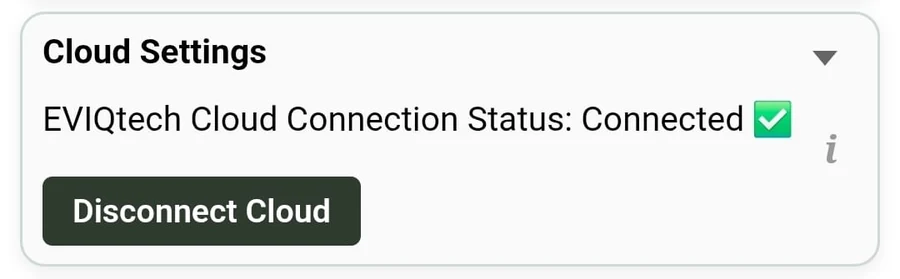
Cloud connection can be established or disconnected in this section.
- Enter your email address and click Connect to Cloud.
- Once an account is created, you will receive an email with a link to set the password.
- Note: If the device is already registered with another email and you try to give a new email, an error is shown.
- If the connection could not be established, please check:
- Internet is available
- No firewall is blocking the internet connection
- Firmware is 1.18.0 or above
7. Cloud Dashboard
The EVIQtech Cloud (powered by ThingsBoard v4.1.0) provides remote monitoring and control from anywhere. The cloud dashboard can be accessed from any device at https://iot.eviqtech.com once the device has been linked to your cloud account (Section 4.4 with the Android app, or Section 5.4 from a browser).
7.1 Logging into the Cloud
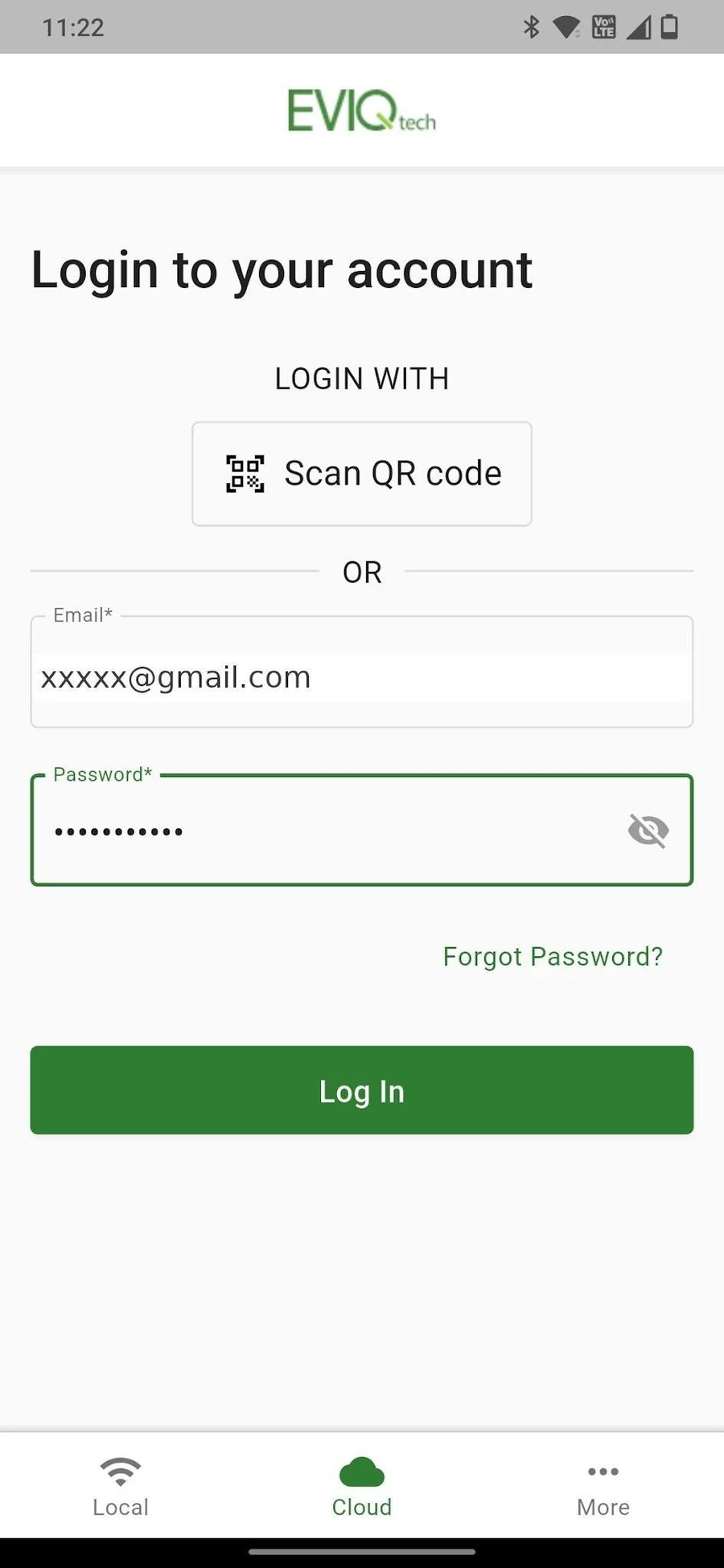
For new users: log in with the email address you used when connecting the device to the cloud, and the password you set using the link sent to that email. If you did not receive the email, check your spam or junk folder.
7.2 Multi-Device Overview
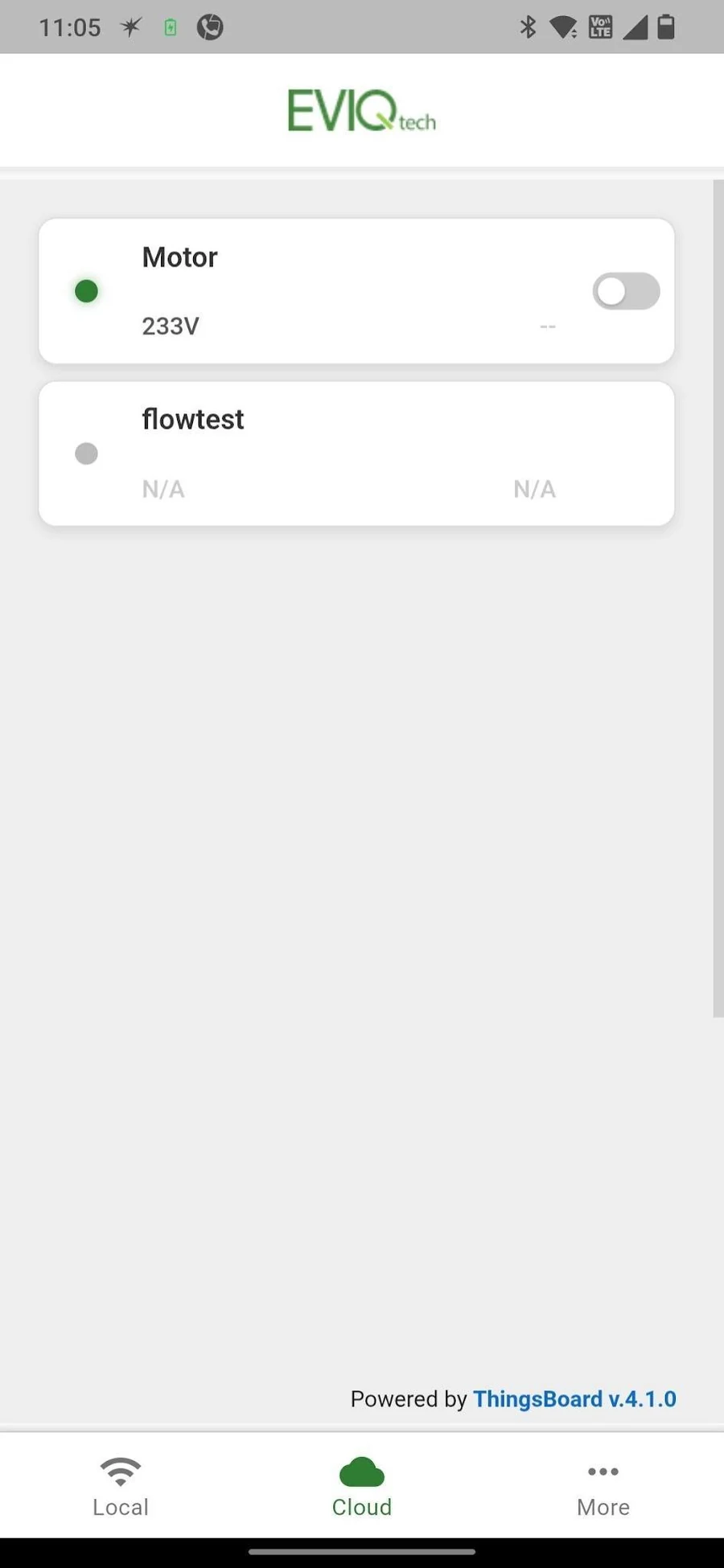
- Green dot: Online and cloud-connected
- Grey dot: Offline or unreachable
- Running status: The device's running status is shown on the right.
- Voltage / Current: When the device is online, the supply voltage is shown. When the device is switched ON, the current it is drawing is also shown.
- Orange flash Indicates that a new firmware version is available. Update can be done upon opening a device home page.
7.3 Cloud Home — Remote Control
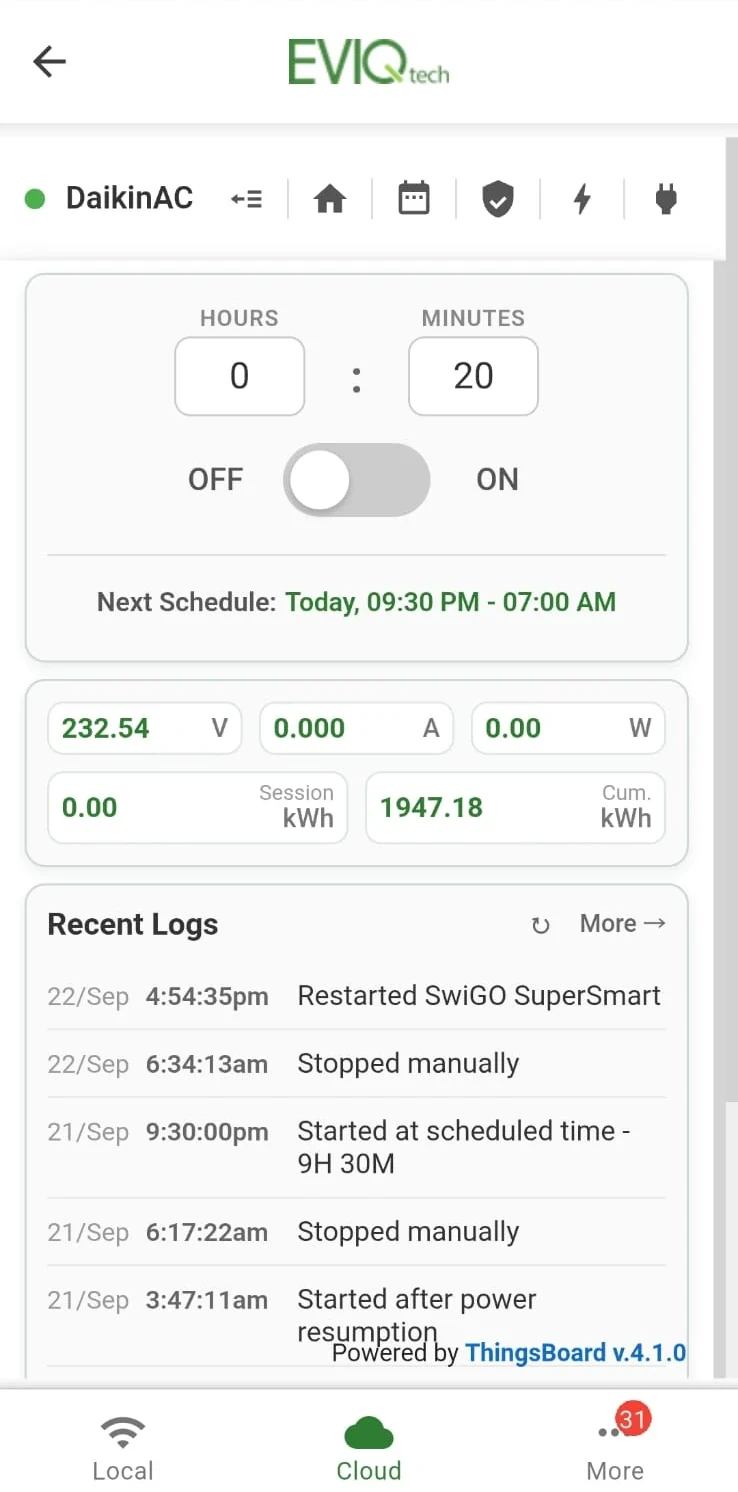
The Cloud Home page looks and works like the Home page of the local interface: the same timer and ON / OFF control, the next schedule, the live readings and the same recent logs. What differs is on either side of that. The cloud adds analytics that the local interface does not have — the voltage-current charts and the energy chart (Section 7.5 and Section 7.6). The Settings menu of the local interface is not available in the cloud, so device configuration — WiFi, device name, PIN, float switch and Master–Remote — is still done from the embedded portal only. Scheduling and Protection settings can be done from cloud interface(Section 6).
- Countdown Timer: Shows remaining time during timed operation
- OFF / ON Toggle: Remote switch from anywhere
- Live Readings: Real-time voltage, current and power
- Logs: Remote actions are logged as "Started from Remote App" to distinguish them from local or physical button actions
7.4 Navigation Icons
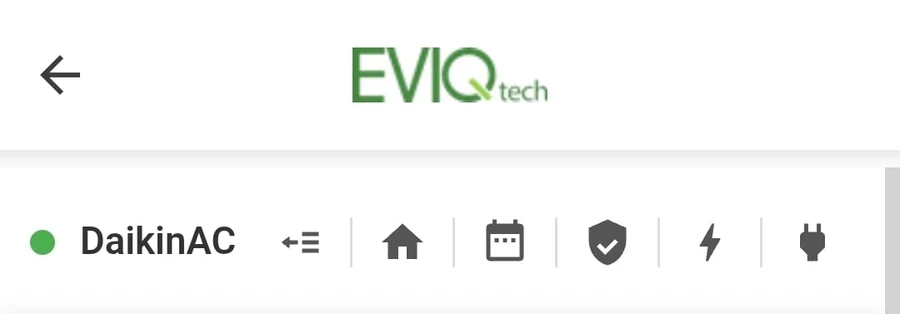
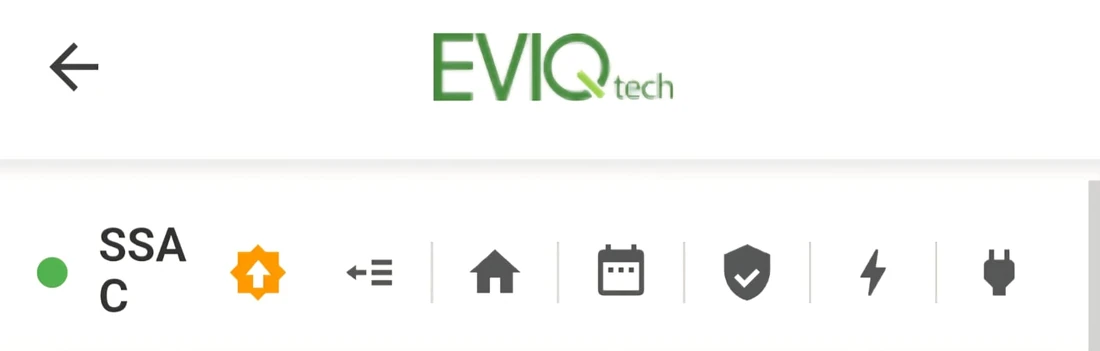
The bar at the top of a cloud device page carries the device name, its status dot and six icons:
- Device name and dot: Green when the device is online, Grey when the cloud has not heard from it (Section 7.2)
- Device list (arrow with lines): back to the list of all your cloud devices
- Home (house): Remote control panel — timer, ON / OFF, next schedule, live readings and recent logs (Section 7.3)
- Calendar: Cloud scheduling (Section 7.7)
- Shield: Protection settings — the dry-run, overload and voltage limits the device is running with (Section 7.8).
- Lightning: Voltage-current analytics (Section 7.5)
- Plug: Energy chart (Section 7.6)
- Orange update icon: appears beside the device name only when a newer firmware is available for that device. Tap it to open the update dialog below.
Firmware Update from the Cloud
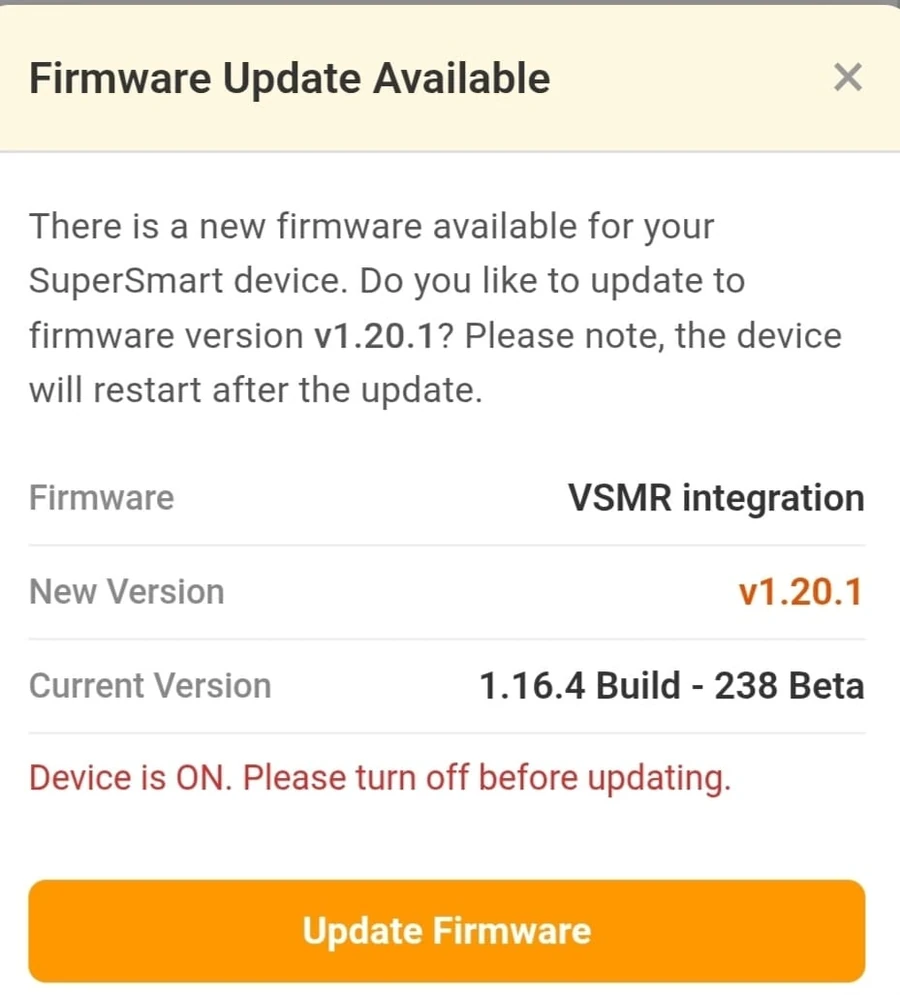
Tapping the orange icon opens Firmware Update Available. The dialog names the firmware release, the New Version offered and the Current Version on your device, and warns that the device will restart once the update is applied.
The load must be switched OFF before updating. By Tapping Update Firmware the device downloads the new firmware, updates and restarts; it reappears online a short while later with the new version shown under Settings → Firmware update (Section 6.6).
7.5 Voltage-Current Analytics
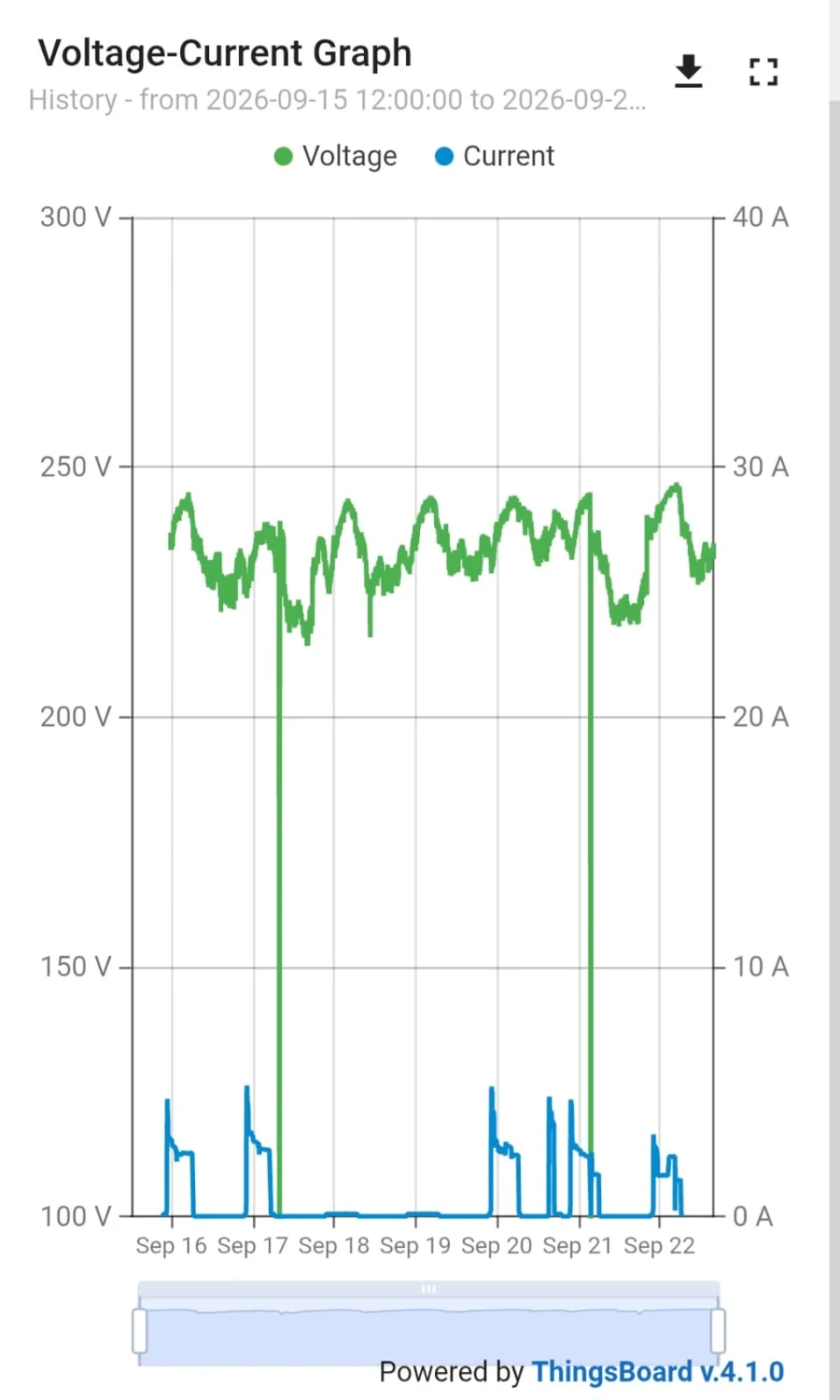
The Voltage-Current Graph plots two measurements on one timeline: mains voltage in green, read against the volts scale on the left, and load current in blue, read against the amps scale on the right. Together they show how steady your supply is and exactly when the load was running — each block of current is one run, and a dip or gap in the voltage line marks a supply problem or a power cut.
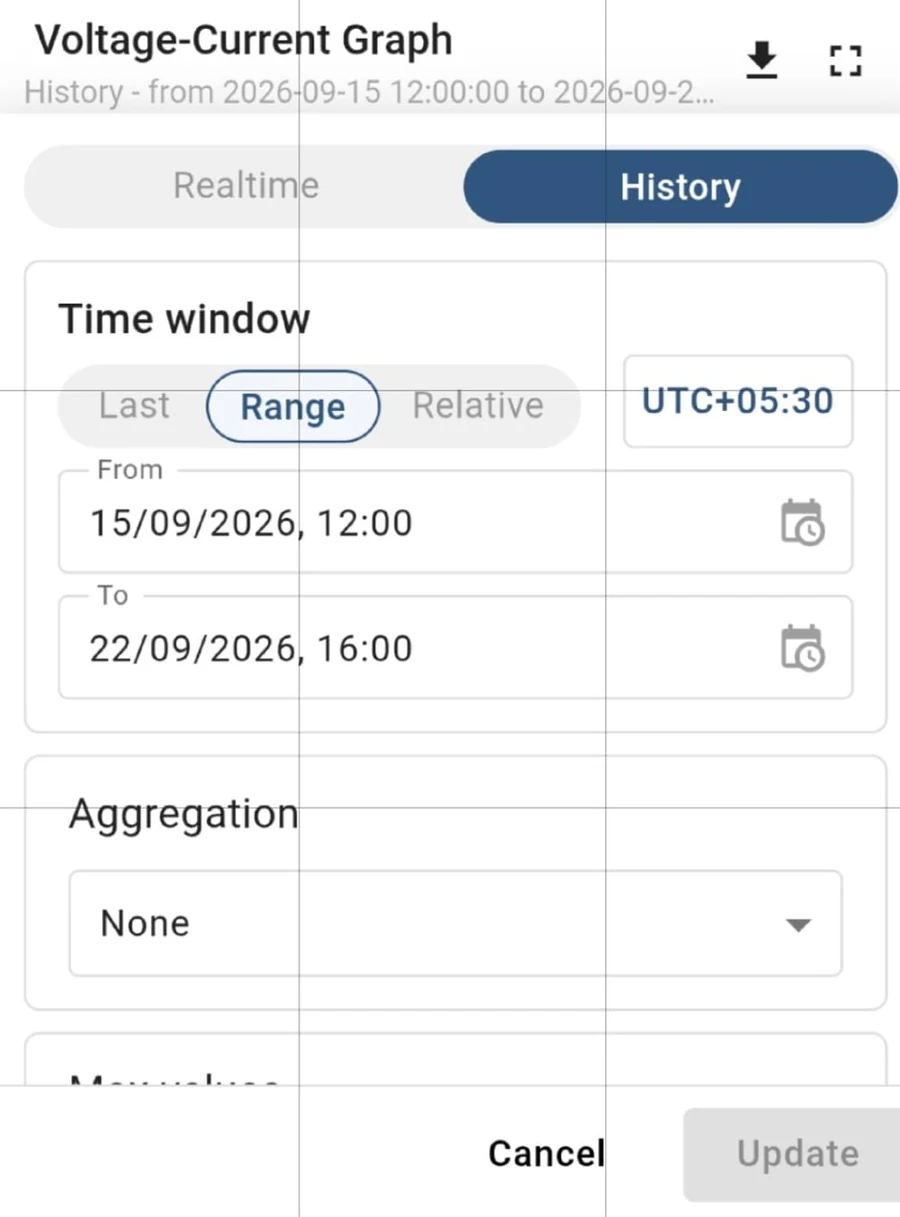
To choose the period, tap the date line under the chart title. The panel that opens holds all of the settings above: pick Realtime or History, choose Last, Range or Relative, set the From and To dates for a range, then tap Update to redraw the chart for that period.
- Realtime / History: switch between a live view that keeps updating and a fixed period from the past
- Time window: Last a period ending now (for example the last 24 hours), Range a fixed start and end date, or Relative a period offset from now. The timezone is shown beside it.
- Aggregation: None, Average, Min or Max — use Average over long periods to smooth the line, or Min and Max to find the lowest and highest values reached
- Max values: Default 25,000 data points
- Show or hide a parameter: tap Voltage or Current in the legend above the chart to hide that line and read the other one on its own
7.6 Energy Chart
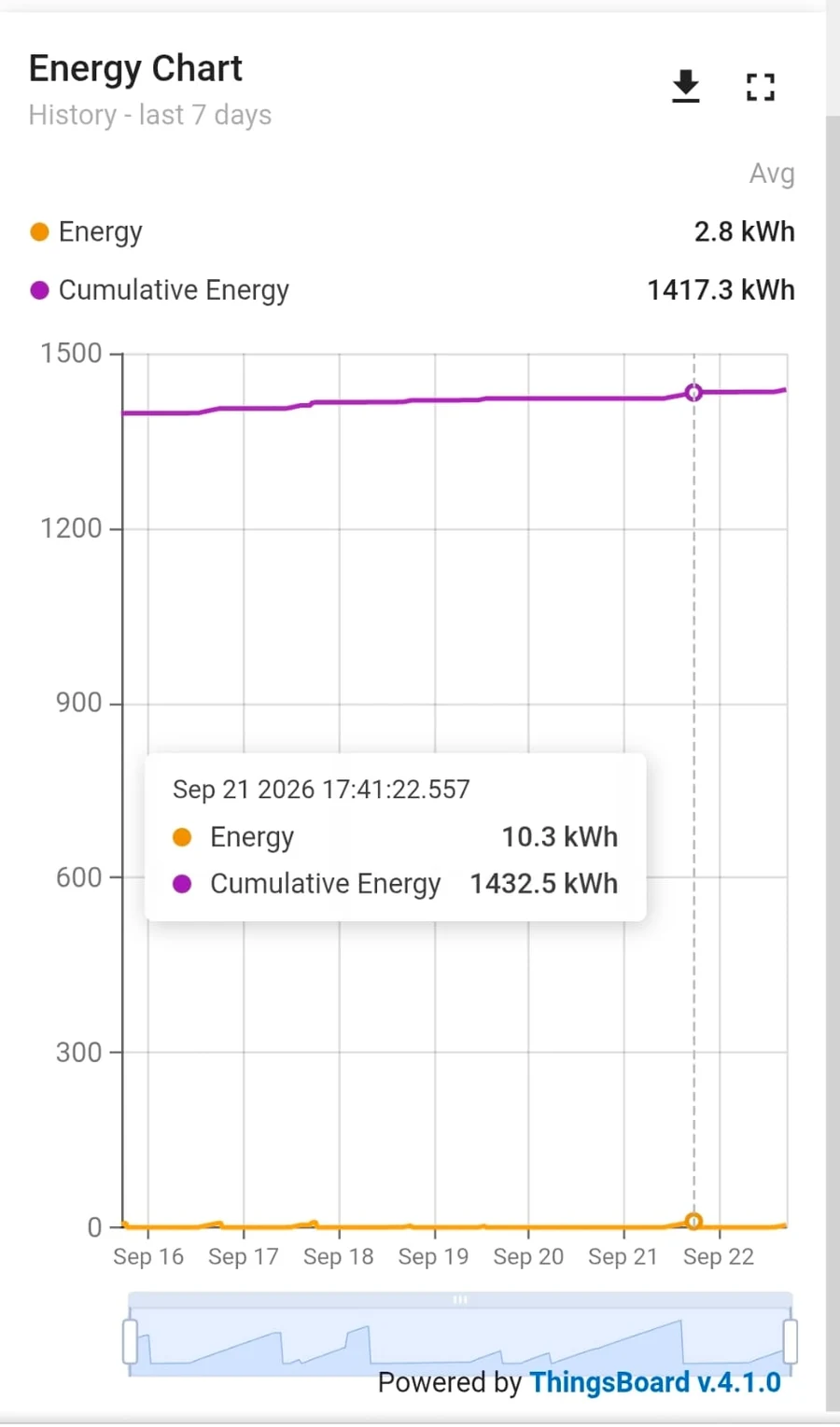
The Energy Chart displays cumulative energy consumption across configurable time ranges (hourly, daily, weekly, monthly). Useful for energy audits and usage tracking.
Two lines are plotted: Energy in orange, the amount used in each period, and Cumulative Energy in purple, the running total since the meter was last reset. The averages for the selected period are shown above the chart, and touching a point on the chart shows the exact values at that moment. The period is chosen the same way as for the voltage-current chart (Section 7.5).
7.7 Cloud Scheduling
The Calendar icon opens the same schedules you see in the local interface. Every option is described in Section 6.4 — Schedules Page; the summary below is a reminder of the fields.
- + Add Schedule: Create new schedule
- Type: Daily or Weekly
- Mode: Clock Based or Duration Based
- Start / End Time: Operating window for the schedule
- Is Cyclic: Enable repeating on/off cycles within the time window (see Section 6.4 for detailed explanation)
- Enable / Disable: Toggle schedule on or off without deleting
7.8 Cloud Protection Settings
The Shield icon opens the device's protection settings. They work exactly as they do in the local interface — the same dry-run and overload current limits, low and high voltage limits, auto-restart and retry delays, maximum run duration and break time. Each setting, what it does and how to choose a value is described in Section 6.5 — Protection Settings.
8. Troubleshooting
8.1 Why the LEDs Are Blinking Rapidly — Fault Conditions
A rapidly blinking red LED is the indication a device telling you why it stopped the load. The four numbered LEDs are the indicators of the four timer buttons (Green, Yellow, Blue, Violet); the fifth red LED is at the right of the panel, below the Red stop button. Each protection fault lights one numbered LED together with the right-hand red LED, so the pair of LEDs identifies the fault.
When a dry-run or overload fault trips the relay, the fault LEDs blink rapidly for about 6 seconds to attract attention and then stop. During low voltage or high voltage the LEDs keep fault-blinking whether the relay is closed or not.
LED Combinations and What They Mean
| LED Combination | Fault | Why It Happened | What to Check |
|---|---|---|---|
| LED 1 + Right RED (both red — blinks for 6 secs) |
Dry-run (under-current) |
Current fell below the configured lower limit — the device stops after 7 seconds if the fault is present at start, or after 4 continuous seconds if it appears while running. Typically a pump running without water | Water level in the sump / well / tank, suction pipe air leak, foot valve, pump losing prime, closed suction valve. Also confirm the dry-run current lower limit is set slightly below the normal running current (recommended: 20% below the running current) |
| LED 2 + Right RED (both red — blinks for 6 secs) |
Overload (over-current) |
Current exceeded the configured upper limit — the device stops after 7 seconds if the fault is present at start, or after 4 continuous seconds if it appears while running. A jam, mechanical binding, bearing failure or winding fault | Impeller or shaft jammed with debris, seized bearing, low mains voltage (which raises current). Also check whether the over-current limit is set correctly for the motor (recommended: 20% more than the normal running current) |
| LED 3 + Right RED (blinks continuously) |
Under-voltage | Mains voltage stayed below the low-voltage limit (default 150V) for about 7 seconds | Supply voltage on the Home page, incoming mains, loose LINE IN or N terminal. Also check whether the low-voltage setting is too close to the nominal voltage |
| LED 4 + Right RED (blinks continuously) |
Over-voltage | Mains voltage stayed above the high-voltage limit (default 290V) for about 7 seconds | Supply voltage, neutral integrity (a broken or floating neutral causes high readings). Also check whether the high-voltage setting is too close to the nominal voltage |
| LEDs 4, 3, 2, 1 in sequence (bottom to top, twice) |
Tank Full | The float switch reported the tank as full, so the pump was stopped (or refused to start) | This is an indication that the tank is full. Check the float switch position and wiring on the 5V DC wires, and the float switch mode selected in Settings (Annexure B) |
Clearing a Fault
- If auto-restart is enabled for that fault, the device waits for the configured 'Retry after' delay and tries again on its own. If the cause is still present it trips again and waits for the next retry cycle. Retries happen only within the scheduled window — if the retry time falls outside the schedule, the device will not restart.
- To clear immediately, open the device Home page and click the "Reset fault conditions and resume now" link, or open Settings → Restart Device → Clear Fault Conditions (Section 6.6). This overrides the fault trip without waiting for the retry timer.
- To confirm the cause, check the Recent Logs on the Home page or the Operation Logs in the cloud dashboard — every trip and retry is logged with its time and reason.
- Review or adjust the thresholds in Protection Settings (Section 6.5) if the trip was a false alarm rather than a real fault.
8.2 Device Does Not Turn ON
Work through the two symptoms separately — a load that never starts and a load that starts and then stops have different causes.
Symptom A: Nothing Happens When You Switch It ON
The load does not start at all, whether from a timer button, the app, the cloud or a schedule.
- Voltage below the low limit (default 150V) or above the high limit (default 290V): the device will not switch the load ON, and the under-voltage or over-voltage LED will be lit (see Section 8.1). Wait for the supply to return to the safe range, or correct the limits in Protection Settings if they are set too tightly for your supply.
- Voltage normal (around 230V): move on to Step 2.
Symptom B: It Turns ON and Stops After a Few Seconds
A load that starts and then stops after a few seconds has almost certainly tripped on dry-run or overload. This is by design: if the fault is already present when the motor starts, the device waits about 7 seconds before stopping, which lets the starting current settle; if the fault appears later, while the motor is running, it stops after 4 continuous seconds. Look at which LED is lit.
If the dry-run LED is lit (LED 1 + right red)
- The water source is empty or the level has fallen below the suction — the usual and intended cause.
- The pump has lost prime, or air is being drawn in through a suction pipe joint or a faulty foot valve.
- The suction valve is closed or the strainer is choked.
- The lower limit is set too high for this motor. Set it slightly below the normal running current — note the running current on the Home page while the motor is healthy, and set the limit below that value.
- For a three-phase motor with an external CT, a wrongly connected or wrongly rated CT reads a low current and looks like a dry run.
If the overload LED is lit (LED 2 + right red)
- Jamming — check this first. A jammed impeller or a seized shaft draws heavy current immediately, so the device stops it about 7 seconds after every start attempt.
- A bearing failure or mechanical binding in the pump or driven equipment.
- Low mains voltage, which makes the motor draw more current for the same load.
- The upper limit is set too tight. Set it slightly above the normal running current but below the motor's rated maximum.
- A motor winding fault or a short circuit in the load wiring — have it checked by an electrician.
8.3 Checking the Connections
Before concluding that the device is faulty, verify the wiring against the relevant circuit diagram in Section 2.5. Always isolate the supply at the MCB before touching any terminal.
- LINE → IN and LINE → OUT not swapped: incoming mains live must go to LINE IN, and the load must be fed from LINE OUT. If they are reversed, the SuperSmart cannot switch on.
- Neutral connected to N: the device needs neutral for its own supply and for voltage measurement. Without it there is no reading and no operation. Both N terminals are internally connected — use either.
- Terminals tight: a loose terminal causes heating, a voltage drop under load, intermittent operation and false under-voltage trips. Re-tighten every terminal and look for discolouration or a burnt smell.
- Conductor size: use conductors rated for the load current, within the 2.5 sq mm x 2 terminal capacity.
- Earth: the green wire must go to a proper earth connection.
- Float / flow switch on 5V DC only: the red and black wires carry 5V DC. Never connect them to AC mains — it will damage the device and void the warranty.
- External CT (three-phase installations): check the CT ratio and its orientation on the conductor. A reversed or wrongly rated CT gives wrong current readings and causes false dry-run or overload trips.
- Starter and pressure switch wiring: for a submersible pump with the EVIQtech Self-Starter (Circuit 6) or a pressure pump (Circuit 5), confirm the starter / pressure switch connections match the diagram for that circuit.
8.4 Device Not Found During BLE Scan
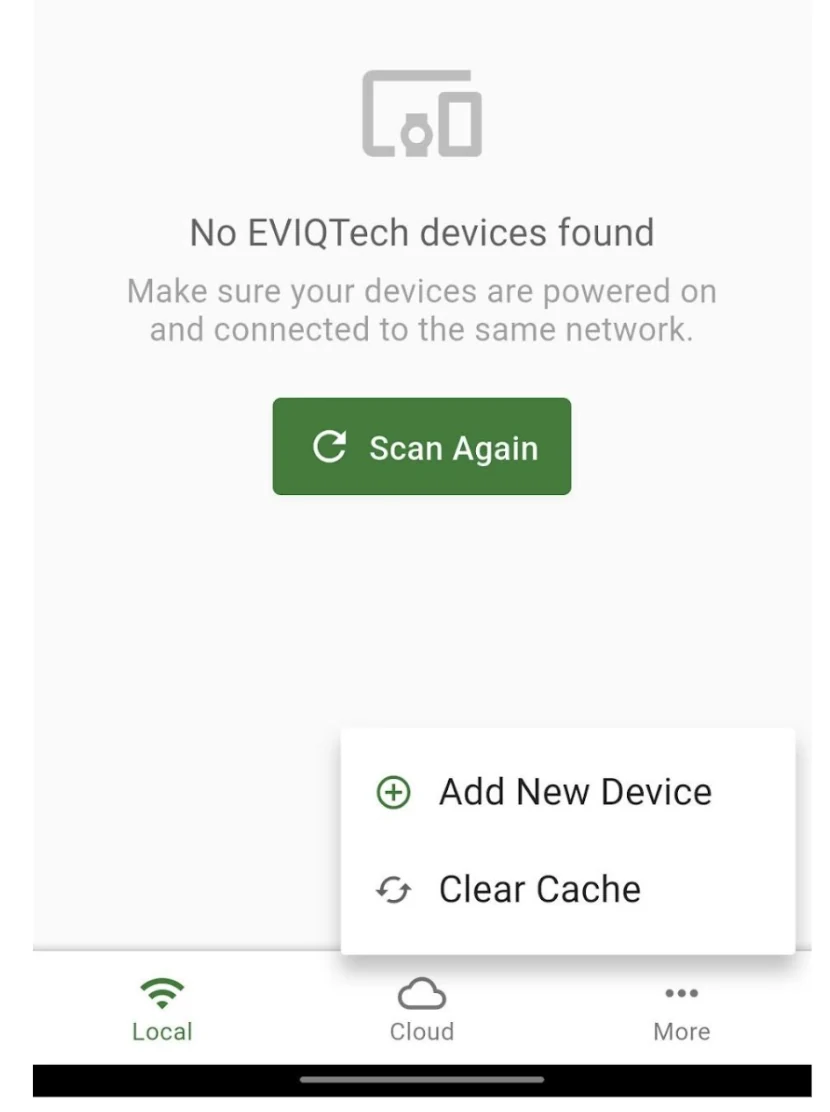
BLE pairing is only used by the Android app to set up WiFi and link the device to the cloud. If the app shows "No EVIQTech devices found", work through these checks in order.
- BLE pairing mode is active: hold the Green + Yellow buttons for about 5 seconds until the blue LED blinks fast. Pairing mode stays open only for a limited time, so start the scan in the app straight away. If you took too long, activate it again.
- Pairing mode was not cancelled: holding the Red button alone for 5 seconds disables BLE pairing mode. If the blue LED has stopped blinking fast, pairing is off.
- Bluetooth is ON on the phone: check Quick Settings (Section 3.4). BLE provisioning needs the EVIQtech Android app; a browser cannot scan for the device.
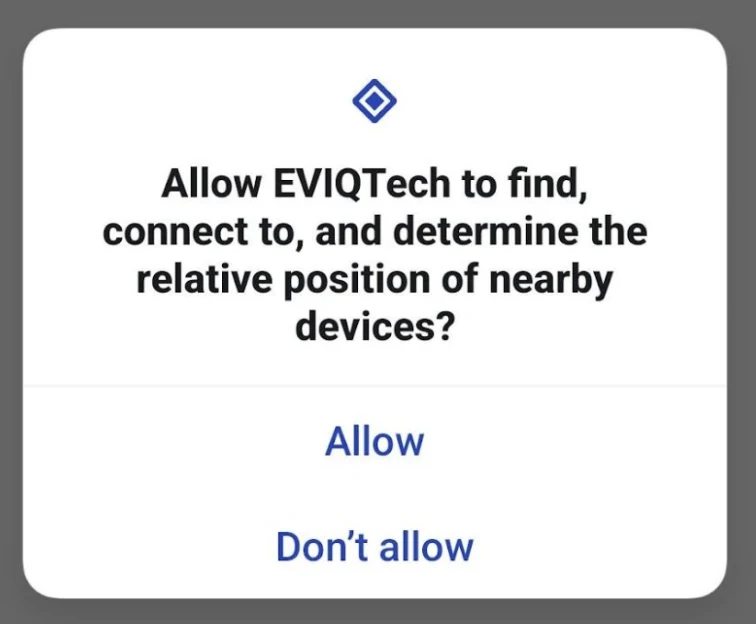
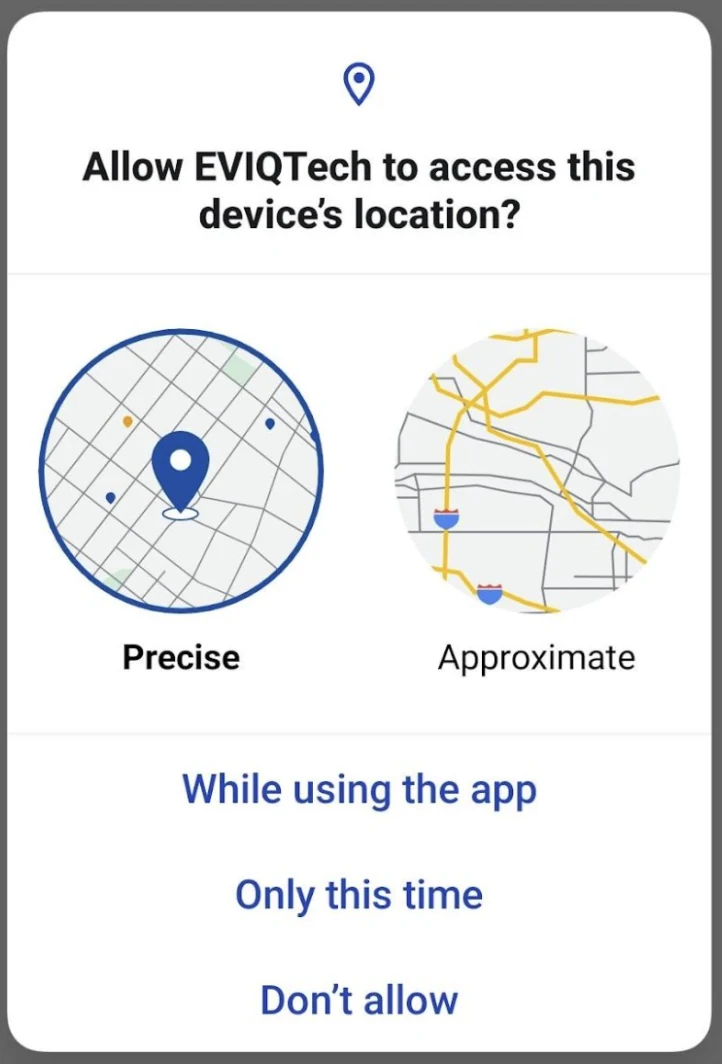
- Permissions granted: the app needs "Nearby devices" and "Precise" location "While using the app" (Section 4.4). If you tapped "Don't allow" earlier, enable both from the phone's Settings → Apps → EVIQtech → Permissions.
- Distance: stay within about 5 meters of the device with no thick walls or metal panels in between. A device installed inside a metal starter panel may need you to stand right next to it.
- Scan again: tap Scan Again. If it still does not appear, power-cycle the device, reactivate pairing mode, and scan once more.
8.5 WiFi Connection Fails
When the device cannot join your WiFi network it falls back to its own access point within about 15 seconds, so you can always reach it and correct the settings. Check the following before trying again.
- Password: WiFi passwords are case-sensitive. Tap the eye icon to check what you typed before saving.
- 2.4 GHz network only: the SwiGO SuperSmart does not support 5 GHz. Many dual-band routers broadcast both bands under one name; if the device will not connect, give the 2.4 GHz band its own network name in the router settings and select that one.
- Signal strength at the installation point: the device is often installed in a pump room, sump area or outside wall where the signal is weak. Check the signal on your phone while standing at the device. If it is poor, move the router or add a WiFi extender.
- Router is online: confirm other devices can use the network, and that the router is not blocking new devices (for example, MAC filtering or a limit on the number of connected devices).
- Static IP settings: if you set a static IP address under Settings → WiFi settings, make sure it is in the same range as your router and not used by another device. If unsure, switch back to automatic (DHCP).
- Restart: restart the router, wait until it is fully online, then power-cycle the device.
- BLE pairing mode is active: while the device is in Bluetooth pairing mode (blue LED
blinking fast, after holding Green + Yellow for 5 seconds) its WiFi is switched off. It will neither
join your network nor offer its own access point, so it cannot be found in the app's Local tab, at
http://192.168.4.1or as DeviceName_AP. Leave pairing mode first — hold the Red button for 5 seconds, or let it time out (Section 2.3) — and the WiFi comes back.
http://192.168.4.1, unlock with your PIN and go to Settings → WiFi settings (Section 4.3).
8.6 Cloud Connection Not Working
The cloud connection depends on the device first being connected to WiFi with working internet. Confirm that the device is reachable locally, then check the cloud-specific causes below.
- Device is on WiFi first: open the app's Local tab (or browse to
http://DeviceName.local) on the same network. If the device does not appear locally, fix WiFi first (Section 8.5). - Internet is available: the router must have a working internet connection. Some office or hotel networks, and firewalls, block the ports used by IoT devices — try another network if possible.
- Correct email: the email entered while linking must match your account at iot.eviqtech.com exactly. A different email creates or links to a different account, and your device will not appear in your usual dashboard.
- Device already registered to another email: linking with a new email shows an error. If you want to change the device email to another one, please call EVIQTech support.
- New account password email: when a new account is created, a link to set the password is sent by email. If it has not arrived, check the spam or junk folder.
- Firmware version: cloud connection from Settings requires firmware 1.18.0 or later. Check the version under Settings → Firmware update.
- App stuck on "Loading dashboard": log out and back in on the Cloud tab, or force-close the app and reopen it.
8.7 Device Offline in Cloud
In the cloud device list a green dot means the device is online, and a grey dot means the cloud has not heard from it recently. A device that was working and then shows grey has usually lost its WiFi or internet connection.
- Power: check that the device has supply and that its LEDs respond. Below about 90V the device does not power on at all (Section 8.2).
- Local connection: on the same WiFi network, check whether the device appears in the app's Local tab. If it does, the WiFi link is fine and the problem is the internet connection or the cloud link.
- Internet at the site: confirm the router has internet. At remote sites a mobile hotspot or dongle may have run out of data or be switched off.
- WiFi network changed: if the router, network name or password was changed, the device cannot rejoin and falls back to AP mode. Connect to DeviceName_AP and update the details in Settings → WiFi settings.
- Power-cycle: switch the supply off and on, wait a minute for the device to reconnect, then refresh the cloud dashboard.
8.8 Returning to AP Mode
In AP mode the device creates its own WiFi network (DeviceName_AP) so you can reach it directly without a router. You would return to AP mode to change a WiFi network that is no longer available, or to control the device at a site without WiFi.
- Automatic: if the configured WiFi network is unavailable, the device returns to AP mode on its own in about 15 seconds.
- Remove WiFi settings and return to AP mode: hold the Violet + Red buttons for 10 seconds until the blue LED lights up. The saved WiFi network is erased; the device name, PIN, schedules and protection settings are kept.
- Parallel AP mode (keep WiFi): hold the Red button alone for 5 seconds. The device opens its access point while staying connected to your WiFi network — useful for a quick local check without changing any settings.
Once the access point is running, connect your phone or laptop to DeviceName_AP, open http://192.168.4.1 in the app or a browser, and unlock with your PIN (Section 4.2).
8.9 Factory Reset
A factory reset returns the device to its out-of-the-box state. Use it only as a last resort — for example, when the PIN is forgotten or the settings are too confused to correct one by one.
8.10 PIN Forgotten
The SwiGO SuperSmart PIN is user-defined and is never the default "1234" after Initial Setup. There is no PIN recovery, because the PIN protects control of the connected motor. Before resetting, try the options below.
- Check a remembered PIN: if "Remember PIN" was ticked on any phone, tablet or browser that has opened the device, it may still unlock without typing the PIN. From there you can set a new PIN under Settings → Device Pin.
- Check the cloud: if the device is linked to your cloud account, you can still control it remotely at iot.eviqtech.com while you plan the reset.
If neither works, reset the PIN with a factory reset:
8.11 iOS / Browser Interface Not Loading
On iPhone, iPad and computers the device is controlled through its built-in web page. If the page does not open, the cause is almost always the network connection between your device and the SwiGO SuperSmart rather than the SuperSmart itself.
- Connected to the right network: in AP mode, join SwiGOss_AP (or DeviceName_AP); in WiFi mode, join the same WiFi network as the device. A phone on a guest network or a different router cannot see the device.
- Type the address with http://: enter
http://192.168.4.1(AP mode) in full. Some browsers automatically switch to https://, which the device does not use. - Use the IP address instead of the .local name:
DeviceName.localdoes not resolve on every device or network. Usehttp://192.168.4.1in AP mode, or the router-assigned IP in WiFi mode (shown in the app's Local tab or your router's connected-devices list). - Turn off mobile data temporarily: when connected to the device's access point (which has no internet), some phones quietly send traffic over mobile data instead.
- Stay on the access point: if the phone shows "No internet — use this network?", choose to keep the connection; otherwise it switches back to another network.
- VPN or security software: a VPN, private relay or firewall on the phone or laptop can block local addresses. Pause it while using the device.
- Clear cache and reload: after a firmware update, an old cached copy of the page may not load correctly. Clear the browser cache or open a private window.
9. Support and Contact
For technical support, warranty inquiries, or feedback:
| Contact | Details |
|---|---|
| Website | www.eviqtech.com |
| info@eviqtech.com | |
| Cloud dashboard | https://iot.eviqtech.com |
| Android app | Via the "More" tab in the EVIQtech app |
10. Annexure
Annexure A — WiFi Settings in Detail
Open Settings → WiFi settings. The top of the section shows the current connection — Mode, SSID, IP address and MAC address — and below it you can give the device a network, or change the one it uses.
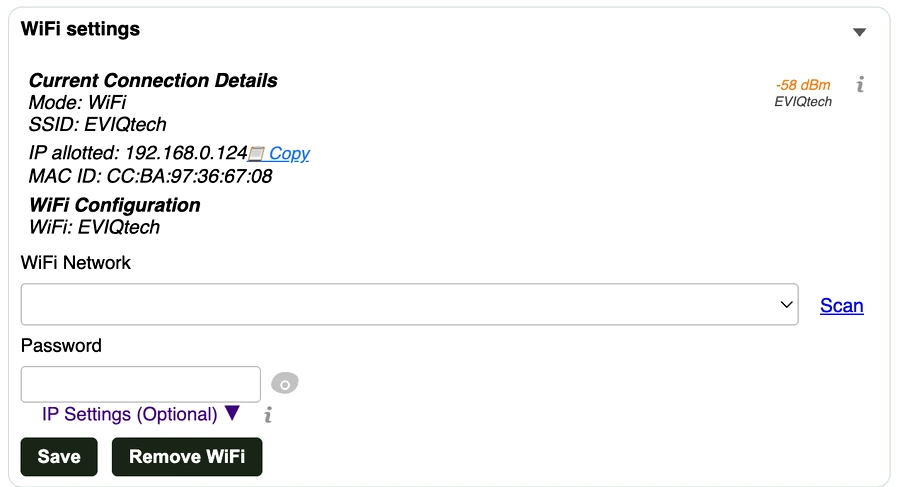
Giving the Device a WiFi Network
The device starts trying immediately — it does not need a restart. Once it joins, the WiFi settings
section shows Mode as WiFi along with the IP address given by your router, and the device can then be reached
on your home network at that IP or at http://devicename.local.
WiFi Connection and disconnection
- If a WiFi network goes down or a router goes down, The device falls back to its own access point — DeviceName_AP at
192.168.4.1witin 15 seconds. — so it always stays reachable and controllable.. - SuperSmart will try to resume a WiFi connection every minute.
- The saved credentials are kept until you change them or clear WiFi. You never have to re-enter them after a power cut or a router restart.
- The saved network connection details can be cleared, with Remove WiFi button or hold Violet + Red for 10 seconds
Parallel AP Mode
Once the device is connected to your router, its own access point is no longer needed, so it is switched off automatically after about five minutes if nobody is connected to it. Parallel AP mode brings that access point back up and runs it alongside the WiFi connection, so the device is reachable both ways at the same time.
- To activate: hold the Red button alone for 5 seconds — the blue
LED lights up (Section 2.3). Then connect your phone to
DeviceName_AP and open
192.168.4.1. - It switches itself off again after five minutes with no device connected to it, and the SuperSmart carries on with its normal WiFi connection. While WiFi is down, the access point is kept up instead of being timed out.
Parallel AP mode is useful when:
- The device is online but you cannot reach it from your network — guest-network isolation, a different subnet, or AP isolation on the router.
devicename.localdoes not resolve on your phone or laptop, and you do not know the IP the router gave it.- You need to check or change settings while the router or the broadband is down.
- You are uploading firmware or troubleshooting and want a direct connection to the device.
Static IP Settings
By default the device takes its address from the router by DHCP, and this suits most installations. The optional static IP fields in WiFi settings — Preferred IP, Gateway, Subnet Mask, Primary DNS, Secondary DNS — fix the address instead, so the device is always at the same place on your network.
- Leave all fields blank to use DHCP (recommended default).
- Preferred IP and Gateway are required together for a static address; the others are optional. If omitted, the subnet mask defaults to 255.255.255.0 and DNS to 8.8.8.8 and 1.1.1.1.
- All values must be valid IPv4 addresses — the portal rejects anything else when you save.
- Choose an address inside your router's subnet but outside its DHCP pool, so the router cannot hand the same address to another device.
- Useful when the device needs a fixed address — a bookmark that must not change, port forwarding, or a building-automation system that polls it. A DHCP reservation in the router achieves the same thing and is easier to manage.
Annexure B — Float Switch & Flow Switch Settings
The SwiGO SuperSmart includes a 5V DC output for connecting a float switch or flow switch. This feature is configured at the bottom of the Settings page under Float switch. It enables automatic pump control based on water level conditions.
Understanding Float Switches (2-Wire and 3-Wire)
The SwiGO SuperSmart can work with both 2-wire and 3-wire float switches.
- 2-Wire Float Switch: Has a single NO (Normally Open) contact. Suitable when you need Tank Full detection only. Connect the two wires directly to the 5V DC terminals (Red and Black wires).
- 3-Wire Float Switch: Has a common wire shared between two internal contacts (NO and NC). Supports both Tank Full and Tank Empty detection depending on which pair of wires you connect.
For a 3-wire float switch, depending on which pair of wires you connect to the 5V DC terminals, you get different detection behavior:
- Wire Pair A (Tank Empty detection): Connect the two wires that have continuity (circuit closed) when the float is hanging down (tank empty). When the tank fills and the float rises, this pair opens.
- Wire Pair B (Tank Full detection): Connect the two wires that have continuity when the float rises (tank full). When the tank is empty and the float hangs down, this pair has no continuity.
Option: No (Default)
Float switch functionality is disabled. The device operates on timer and manual control only. This is the factory default setting.
Option: Tank Full Detection (NO Contact)
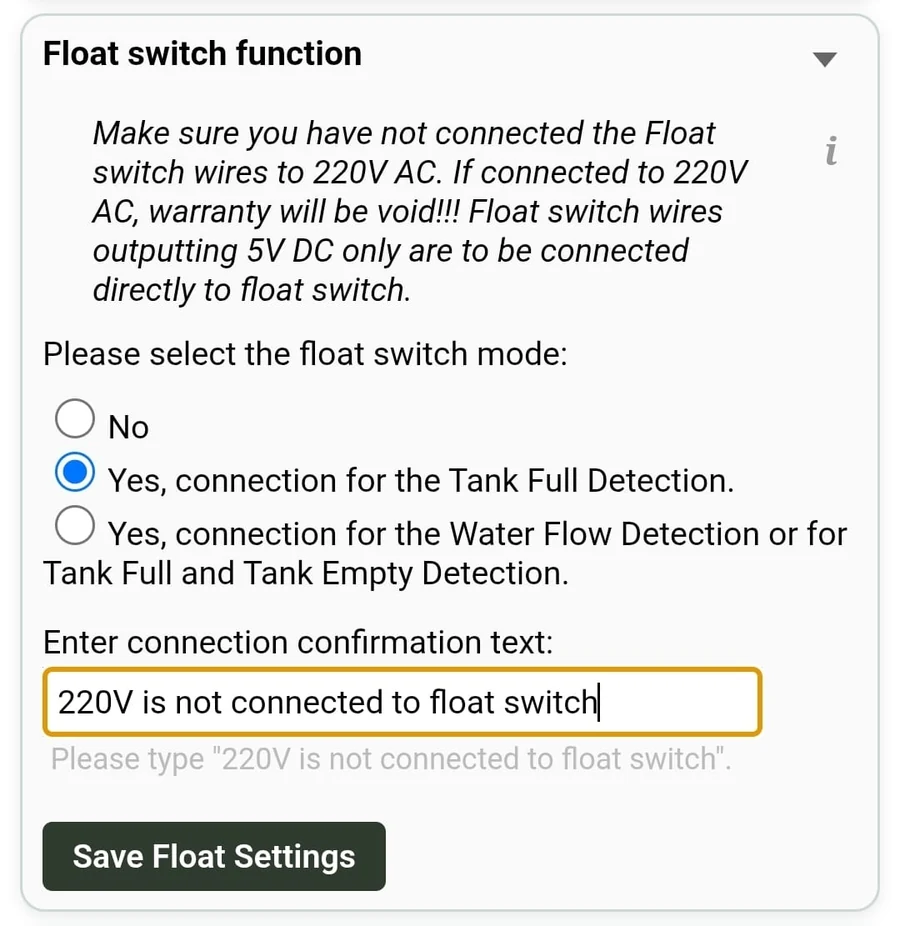
Use this mode to automatically stop the pump when the tank is full. Connect Wire Pair B (continuity when float rises / tank full) to the 5V DC terminals.
How it works: When empty, the float hangs down and the circuit is open — the pump can run via timer, schedule, or manual control. As the tank fills and the float rises, the circuit closes and the device immediately stops the pump.
- Wire pair to use: Pair B — continuity when float is UP (tank full)
- Pump stops when: Float rises (tank full) — circuit closes
- Pump starts: Via timer, schedule, or manual ON only
- Use case: Overhead tank filling — pump runs until tank is full, then stops automatically
Option: Flow Detection or Tank Full/Empty Detection (NO Contact)
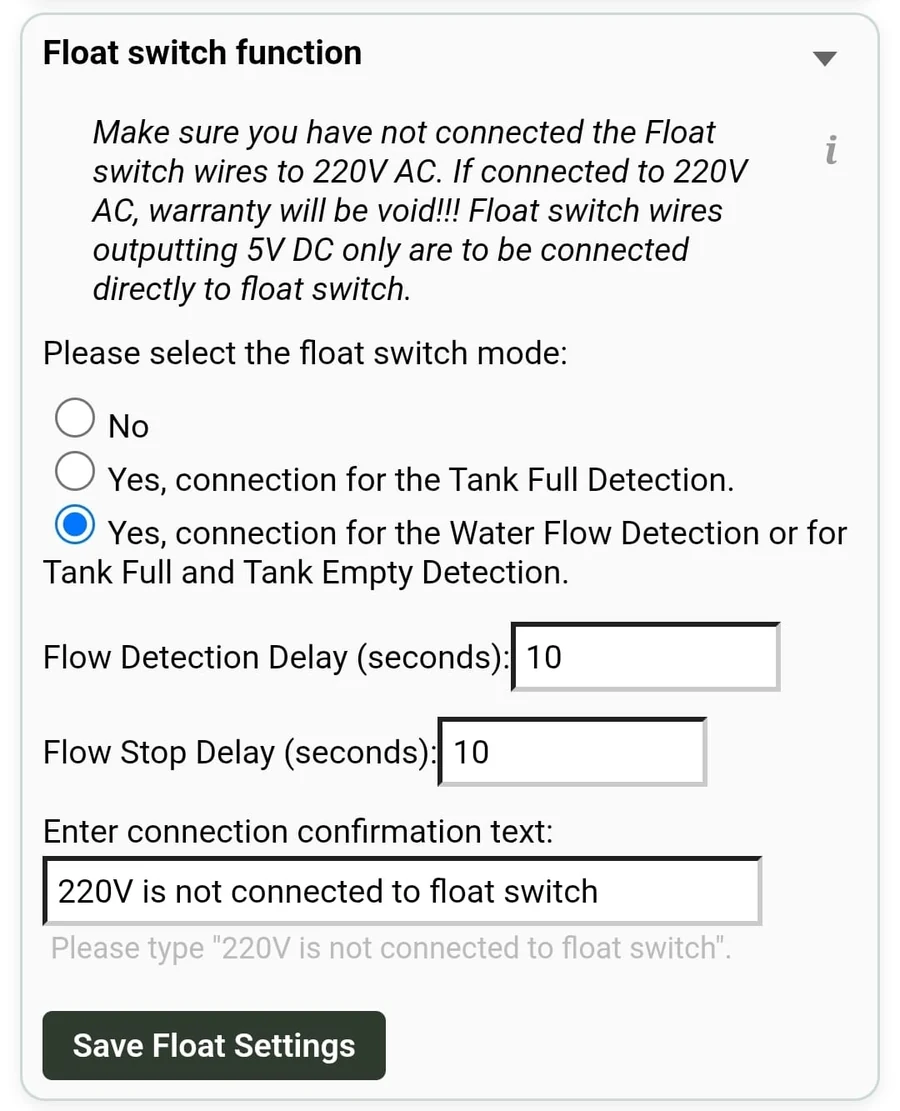
Use this mode to detect when the tank is empty and control the pump accordingly. Connect Wire Pair A (continuity when float hangs down / tank empty).
How it works: When empty, the float hangs down and the circuit is closed — the device can start the pump. As the tank fills and the float rises, the circuit opens and the pump stops. When water drops again, the float falls and the pump can restart automatically.
- Wire pair to use: Pair A — continuity when float is DOWN (tank empty)
- Pump runs when: Float hangs down (tank empty) — circuit closed
- Pump stops when: Float rises (tank full) — circuit opens
- Auto-restart: Yes — pump restarts when float drops again (tank empties)
- Use case: Fully automatic tank fill-and-stop cycle with no scheduling needed
Flow Switch Option
A flow switch (paddle-type) can be connected to detect water flow in the pipe. When water flows, the switch remains closed and the pump runs. When flow stops (e.g., pipe blockage, dry pipe), the switch opens and the pump stops. This provides flow-based dry-run protection.
- Switch type: Paddle or flow switch — closed when water flows, open when no flow
- Use case: Dry-run protection based on actual water flow rather than current sensing
Delay Settings
When a flow switch option is selected, two delay fields appear:
- Flow Detection Delay (seconds): How long the device waits after detecting a switch state change before acting. Default: 10 seconds. Prevents false triggers from water sloshing or momentary float bouncing.
- Flow Stop Delay (seconds): How long after the switch opens before the pump is stopped. Default: 10 seconds. Provides a buffer to confirm the condition is genuine.
A safety confirmation text — "220V is not connected to float switch" — must be entered before saving.
Wiring Summary
| Mode | Wire Pair / Type | Float Position for Continuity | Pump Action |
|---|---|---|---|
| Tank Full Detection | 3-wire: Pair B / 2-wire: NO type | Float UP (tank full) | Stops pump when full |
| Tank Empty Detection | 3-wire: Pair A / 2-wire: NC type | Float DOWN (tank empty) | Runs pump when empty, stops when full |
| Flow Switch | 2-wire device | N/A — flow-based | Stops pump when no flow |
Annexure C — Master–Remote Control Configuration
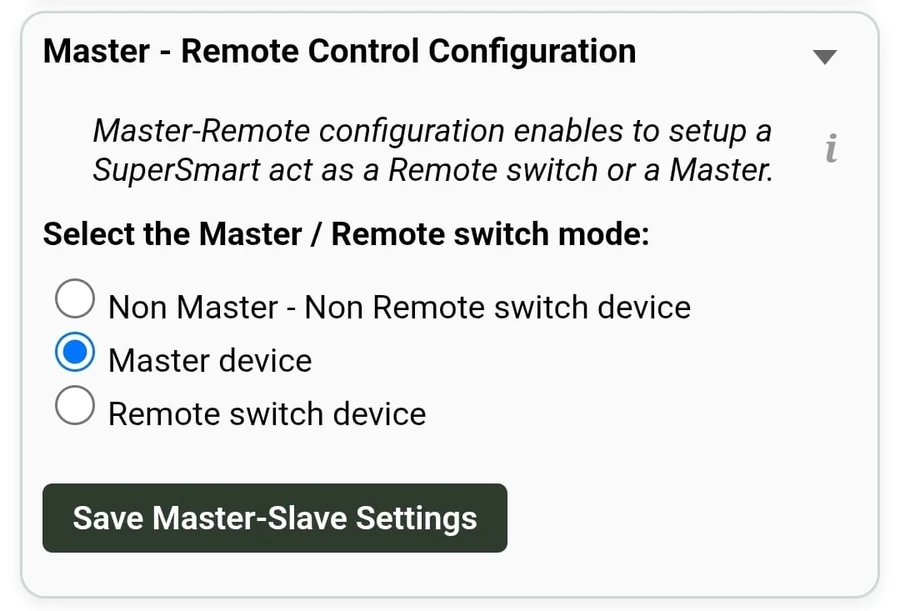
The Master-Remote feature allows multiple SwiGO SuperSmart devices to work together. One device acts as the Master and controls one or more Remote devices. When the Master switches ON or OFF, it sends a command to all linked Remote devices to do the same.
Three modes are available:
- Non Master – Non Remote switch device (Default): The device operates independently with no master-remote relationship.
- Master device: This device becomes the master. When it switches ON or OFF (via timer, schedule, or manual), all linked remote devices follow.
- Remote switch device: This device becomes a remote. It receives ON / OFF commands from its paired master device and follows them.
Remote Switching Method
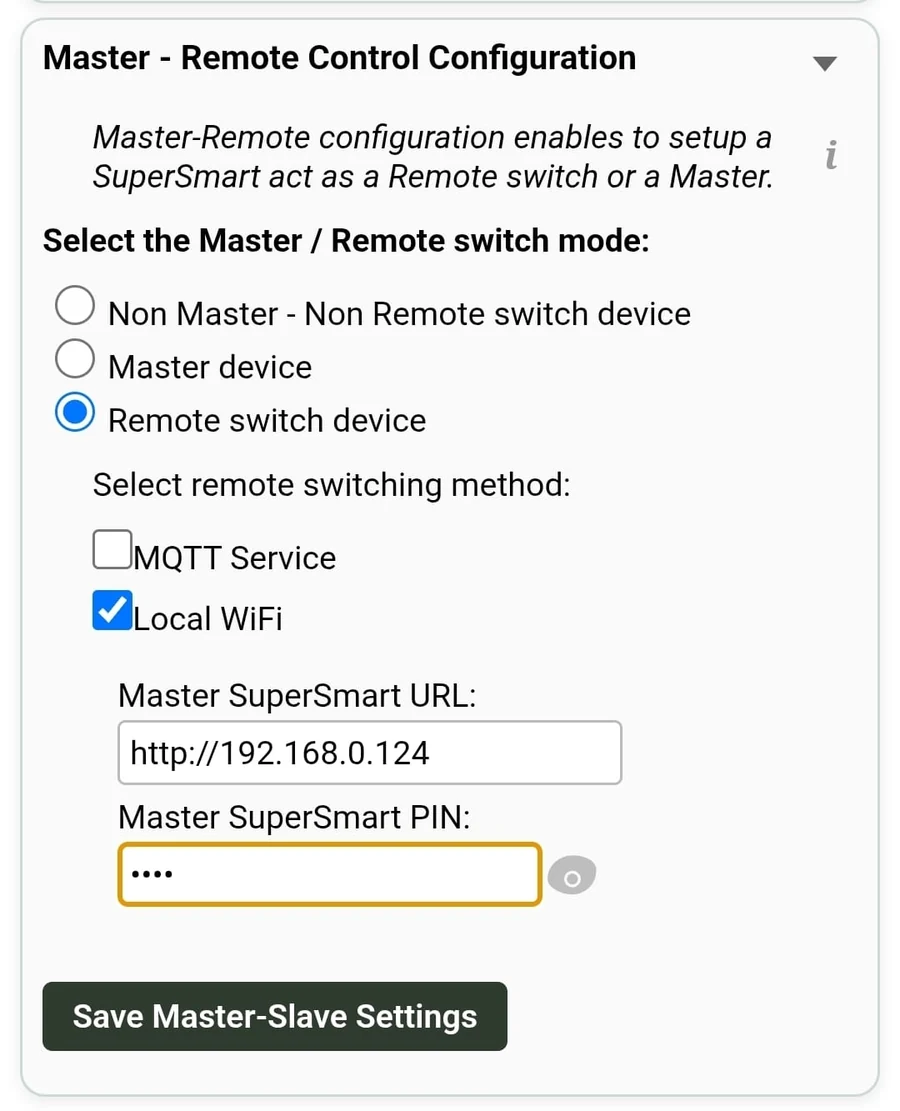
When Master or Remote mode is selected, choose the communication method:
- MQTT Service: Uses the cloud (MQTT protocol) to relay commands between master and remote devices. Works over the internet — devices can be on different WiFi networks or locations.
- Local WiFi: Commands are sent directly over the local WiFi network. Both master and remote devices must be on the same WiFi network. Lower latency, no internet required.
Thank you for choosing EVIQtech!
© 2026 EVIQtech. All rights reserved.